Creating a Wishlist in Elementor is a powerful way to enhance the shopping experience on your WooCommerce website. A wishlist allows customers to save products for future purchase, making it easier for them to return and complete their orders later. With Elementor Pro, you can design a fully customized and user-friendly Wishlist page that not only looks great but also integrates seamlessly with your store’s branding. Whether you’re looking to improve user engagement, boost sales, or simply offer more convenience to your visitors, setting up a wishlist page is a smart move — and Elementor makes it easier than ever.
Create a Wishlist in Elementor Pro-Step By Step Guide
Prerequisites
Before you start:
- WordPress installed with WooCommerce
- Elementor Pro installed and activated
- A Wishlist plugin like YITH WooCommerce Wishlist (free or premium) or TI WooCommerce Wishlist
STEP-BY-STEP GUIDE
Step 1: Install a Wishlist Plugin
Choose either YITH or TI WooCommerce Wishlist plugin.
For YITH WooCommerce Wishlist:
- Go to Plugins > Add New
- Search for “YITH WooCommerce Wishlist”
- Install and activate the plugin
Step 2: Configure Wishlist Plugin Settings
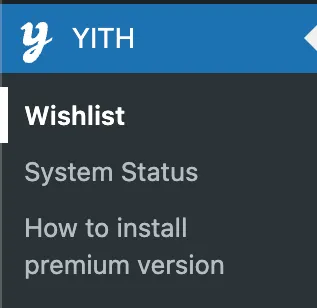
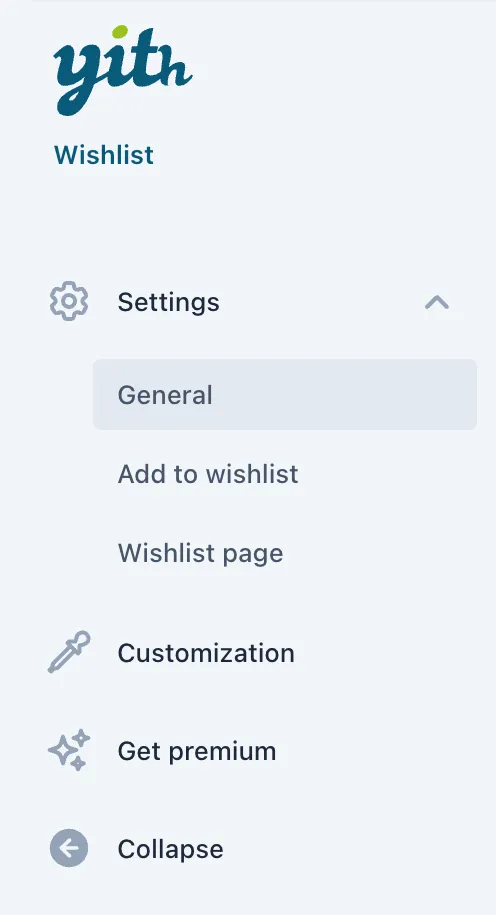
- Go to YITH > Wishlist in the WordPress dashboard
- Customize:
- Wishlist page (can set to auto-create one or choose a custom page)
- Button styles, table layout, etc.
- Save settings
Step 3: Create a Wishlist Page in WordPress
If the plugin didn’t auto-create one:
- Go to Pages > Add New
- Name it “Wishlist”
- Paste the shortcode from the plugin (e.g., for YITH:
[yith_wcwl_wishlist]) - Publish the page
Step 4: Customize Wishlist Page with Elementor Pro
- Go to Pages > All Pages
- Hover over your “Wishlist” page and click Edit with Elementor
- Drag in Shortcode widget
- Paste
[yith_wcwl_wishlist]into the widget - Style the section:
- Add padding, background, headings, etc.
- Customize colors and typography to match your brand
- Optionally, add additional elements:
- Heading (“My Wishlist”)
- Button to return to Shop
- Login prompt for non-logged-in users
Step 5: Add “Add to Wishlist” Button to Products
The wishlist plugin should auto-add a button, but you can verify:
- Go to YITH > Wishlist > Add to Wishlist Options
- Enable the button on product loops/single product pages
- Choose icon style, text, and position
Step 6: Add Wishlist Page to Navigation Menu
- Go to Appearance > Menus
- Add the “Wishlist” page to your menu
- Save menu
Optional: Advanced Customization with Elementor Pro (Theme Builder)
If you’re using Elementor Pro’s Theme Builder, you can:
- Customize Single Product Template to include a dynamic wishlist button
- Use HTML/Shortcode widget for
[yith_wcwl_add_to_wishlist]
- Use HTML/Shortcode widget for
- Use conditions to display custom layouts for wishlist items
- Add dynamic sections for user-specific content (e.g., login required)
Final Checklist
| Step | Status |
|---|---|
| Install wishlist plugin | ✅ |
| Create/edit Wishlist page | ✅ |
| Insert shortcode in Elementor | ✅ |
| Customize look & feel | ✅ |
| Add to menu | ✅ |
Additional Tips
- User Accounts: Encourage users to create accounts so they can save their wishlists across sessions.
- Email Notifications: Consider setting up email notifications to alert users when items in their wishlist go on sale or are back in stock.
- Promote the Wishlist: Highlight the wishlist feature on your homepage or product pages to increase user engagement.
Conclusion
n conclusion, creating a Wishlist page using Elementor Pro is a simple yet impactful way to improve your WooCommerce store’s user experience and boost customer retention. By integrating a wishlist feature with Elementor’s powerful design tools, you can build a visually appealing and fully functional page that aligns perfectly with your brand. Whether you’re using a plugin like YITH, JetCompareWishlist, or The Plus Addons, the flexibility of Elementor Pro ensures you can customize every aspect to meet your site’s unique needs. Start building your wishlist in Elementor today and give your customers a more personalized and convenient shopping journey.