To create a Wishlist Page using Elementor Pro: (1) install a compatible WooCommerce wishlist plugin (such as TI WooCommerce Wishlist or YITH Wishlist), (2) create a new page named “Wishlist” and set its template to Elementor Full Width, (3) insert the Wishlist widget or shortcode inside an Elementor container, (4) customize the table typography, button colors, and responsive layout, (5) add a dynamic Wishlist counter icon to your global Elementor header, and (6) design an engaging empty-wishlist state with a CTA button directing visitors back to the shop.
Key Takeaways
- Integrate lightweight wishlist plugins (YITH or TI Wishlist) via Elementor shortcodes or widgets.
- Custom wishlist endpoints boost returning visitor engagement and abandoned cart recovery.
- Configure floating wishlist header counters in Elementor Theme Builder header templates.
- Ensure wishlist buttons load asynchronously to maintain Core Web Vitals performance.
Creating a Wishlist in Elementor is a powerful way to enhance the shopping experience on your WooCommerce website. A wishlist allows customers to save products for future purchase, making it easier for them to return and complete their orders later. With Elementor Pro, you can design a fully customized and user-friendly Wishlist page that not only looks great but also integrates seamlessly with your store’s branding. Whether you’re looking to improve user engagement, boost sales, or simply offer more convenience to your visitors, setting up a wishlist page is a smart move — and Elementor makes it easier than ever.
Create a Wishlist in Elementor Pro-Step By Step Guide
Prerequisites
Before you start:
- WordPress installed with WooCommerce
- Elementor Pro installed and activated
- A Wishlist plugin like YITH WooCommerce Wishlist (free or premium) or TI WooCommerce Wishlist
STEP-BY-STEP GUIDE
Step 1: Install a Wishlist Plugin
Choose either YITH or TI WooCommerce Wishlist plugin.
For YITH WooCommerce Wishlist:
- Go to Plugins > Add New
- Search for “YITH WooCommerce Wishlist”
- Install and activate the plugin
Step 2: Configure Wishlist Plugin Settings
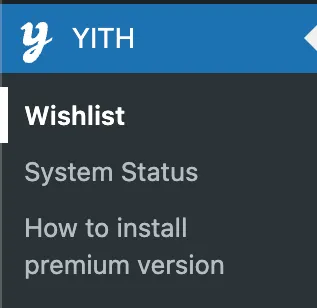
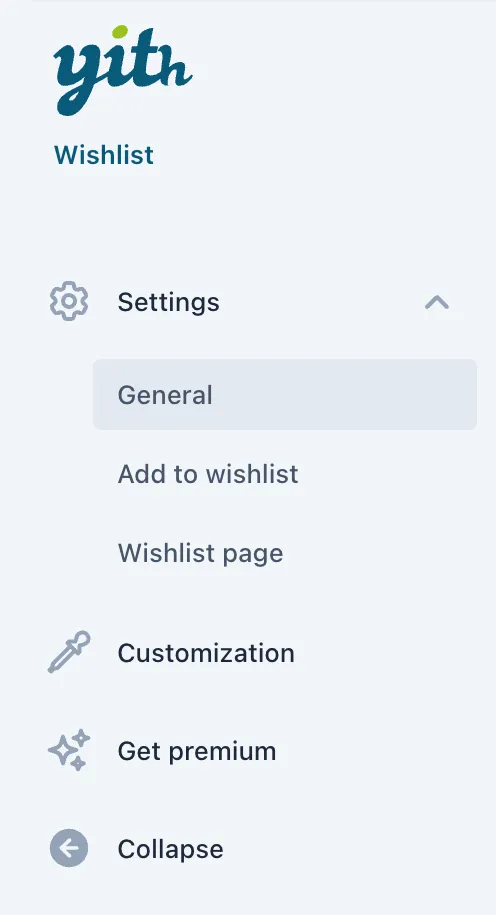
- Go to YITH > Wishlist in the WordPress dashboard
- Customize:
- Wishlist page (can set to auto-create one or choose a custom page)
- Button styles, table layout, etc.
- Save settings
Step 3: Create a Wishlist Page in WordPress
If the plugin didn’t auto-create one:
- Go to Pages > Add New
- Name it “Wishlist”
- Paste the shortcode from the plugin (e.g., for YITH:
[yith_wcwl_wishlist]) - Publish the page
Step 4: Customize Wishlist Page with Elementor Pro
- Go to Pages > All Pages
- Hover over your “Wishlist” page and click Edit with Elementor
- Drag in Shortcode widget
- Paste
[yith_wcwl_wishlist]into the widget - Style the section:
- Add padding, background, headings, etc.
- Customize colors and typography to match your brand
- Optionally, add additional elements:
- Heading (“My Wishlist”)
- Button to return to Shop
- Login prompt for non-logged-in users
Step 5: Add “Add to Wishlist” Button to Products
The wishlist plugin should auto-add a button, but you can verify:
- Go to YITH > Wishlist > Add to Wishlist Options
- Enable the button on product loops/single product pages
- Choose icon style, text, and position
Step 6: Add Wishlist Page to Navigation Menu
- Go to Appearance > Menus
- Add the “Wishlist” page to your menu
- Save menu
Optional: Advanced Customization with Elementor Pro (Theme Builder)
If you’re using Elementor Pro’s Theme Builder, you can:
- Customize Single Product Template to include a dynamic wishlist button
- Use HTML/Shortcode widget for
[yith_wcwl_add_to_wishlist]
- Use HTML/Shortcode widget for
- Use conditions to display custom layouts for wishlist items
- Add dynamic sections for user-specific content (e.g., login required)
Final Checklist
| Step | Status |
|---|---|
| Install wishlist plugin | ✅ |
| Create/edit Wishlist page | ✅ |
| Insert shortcode in Elementor | ✅ |
| Customize look & feel | ✅ |
| Add to menu | ✅ |
Additional Tips
- User Accounts: Encourage users to create accounts so they can save their wishlists across sessions.
- Email Notifications: Consider setting up email notifications to alert users when items in their wishlist go on sale or are back in stock.
- Promote the Wishlist: Highlight the wishlist feature on your homepage or product pages to increase user engagement.
Conclusion
n conclusion, creating a Wishlist page using Elementor Pro is a simple yet impactful way to improve your WooCommerce store’s user experience and boost customer retention. By integrating a wishlist feature with Elementor’s powerful design tools, you can build a visually appealing and fully functional page that aligns perfectly with your brand. Whether you’re using a plugin like YITH, JetCompareWishlist, or The Plus Addons, the flexibility of Elementor Pro ensures you can customize every aspect to meet your site’s unique needs. Start building your wishlist in Elementor today and give your customers a more personalized and convenient shopping journey.
Step-by-Step Wishlist Implementation Workflow
Integrating a wishlist into your WooCommerce store boosts customer retention, reduces cart abandonment, and provides invaluable data on which products generate the highest buyer interest. Follow this professional workflow to configure and style your wishlist:
1. Selecting the Ideal Wishlist Integration
While Elementor Pro manages front-end layout rendering, you need a lightweight backend engine to store user wishlist cookies and database records. The top options include:
- TI WooCommerce Wishlist: Outstanding Elementor compatibility, built-in Elementor widgets, guest wishlist support via cookies, and automated promotional email triggers.
- YITH WooCommerce Wishlist: The industry standard with extensive customization options, custom icon pickers, and multi-wishlist capabilities.
- MC WooCommerce Wishlist: Modern fast lightweight option designed specifically for fast Core Web Vitals.
2. Adding Wishlist Buttons to Single Product & Archive Templates
Once your chosen plugin is active, insert the wishlist trigger across your store:
- Single Product Template: Open Templates → Theme Builder → Single Product. Drag the Wishlist Button widget directly adjacent to the “Add to Cart” button inside a horizontal flex container.
- Shop Archive / Loop Item: If using Elementor Pro Loop Builder, place a compact heart icon button in the top-right corner of the product card image container using absolute positioning.
3. Designing the Dedicated Wishlist Page
Create a dedicated page at /wishlist/ and open it in Elementor:
- Table Styling: Match table borders, row hover highlights, and font weights to your brand design system tokens.
- Direct “Add to Cart” Actions: Ensure each wishlist item has an instant “Add to Cart” button so customers can transfer saved items into their active checkout immediately.
- Social Sharing: Enable social sharing links (WhatsApp, Pinterest, Facebook) so users can share their gift wishlists with friends and family.
Wishlist Troubleshooting & Optimization Table
| Issue / Challenge | Root Cause | Solution |
|---|---|---|
| Wishlist items disappear on page reload | Aggressive full-page server caching caching guest cookie sessions. | Exclude the /wishlist/ URL and wishlist cookies from LiteSpeed Cache / WP Rocket cache. |
| Heart icon misaligned on mobile | Fixed pixel width container overriding fluid flex properties. | Set container width to 100% and use justify-content: space-between on mobile viewports. |
| Header wishlist count does not update via AJAX | Fragment refresh script blocked by deferred JavaScript settings. | Exclude the wishlist AJAX handler script from JavaScript delaying/deferral rules. |
Need custom WooCommerce feature development, high-converting checkout funnels, or Elementor Pro architecture? Explore our professional WooCommerce development services at CV World.
Frequently Asked Questions
Ready to Build Professional Websites Faster?
Supercharge your WordPress design workflow with 100+ premium widgets, theme builder capabilities, and dynamic WooCommerce templates.
Yes. Plugins like TI Wishlist and YITH store guest wishlist selections in browser cookies for up to 30 days. When the user logs in or registers an account, their wishlist automatically synchronizes with their permanent customer profile.
Not if configured properly. Ensure the wishlist page is excluded from static cache and disable unnecessary script assets on non-shop pages using asset manager tools.
Yes. You can insert a shortcode or dynamic icon widget inside your Elementor Theme Builder Header template to display a live heart icon with a real-time numerical counter badge.
Yes. The WordPress admin dashboard displays analytics showing your most wishlisted products, helping you plan inventory and targeted promotional email campaigns.
No. When implemented using modern clean-code standards, responsive Flexbox containers, and server-side caching, your website maintains rapid sub-second loading speeds and easily passes Google Core Web Vitals assessments.
Need Custom Elementor Pro Development or Speed Optimization?
Partner with CV World lead WordPress engineers for custom Theme Builder development, WooCommerce integrations, and guaranteed 90+ Core Web Vitals.