

To create a Custom 404 Error Page in Elementor Pro: (1) go to Templates → Theme Builder → Single, (2) create a new template and set type to 404 Page, (3) design an engaging layout with a friendly error headline, search form, and links to top pages, (4) add a prominent CTA button directing visitors to the homepage, and (5) set Display Conditions to Include → 404 Page.
Key Takeaways
- A branded 404 page turns broken links into navigational opportunities and reduces bounce rates.
- Include a live search bar, links to top pillar articles, and a direct contact WhatsApp button.
- Ensure the server returns a proper 404 HTTP status code header to notify search engine bots.
- Track 404 hits in Google Search Console or Rank Math Redirections to fix broken backlinks.
A 404 page is what visitors see when they land on a broken or non-existent link on your website. Instead of showing a boring default error, why not design a branded, engaging page? With Elementor Pro, creating a custom 404 page is simple, flexible, and code-free.
In this guide, you’ll learn how to create a fully customized 404 page in Elementor Pro that improves user experience and keeps visitors engaged on your site.
What Is a 404 Page?
A 404 error page is shown when a user tries to access a page that doesn’t exist on your site—whether due to a broken link, deleted content, or mistyped URL. A good 404 page should:
- Inform the user that the page doesn’t exist
- Help them navigate back to working pages
- Reflect your brand’s tone and design
By default, most WordPress themes use a generic 404 page, which can be dull and unhelpful. That’s why creating a custom 404 page in Elementor Pro is a smart move.
Why Use Elementor Pro for Your 404 Page?
Elementor Pro’s Theme Builder allows you to override the default 404 page provided by your WordPress theme. With it, you can design a visually appealing and functional error page that matches the rest of your site—without touching any code.
Benefits of building a 404 page in Elementor Pro:
- Drag-and-drop design
- Add links, buttons, images, animations, and search bars
- Fully responsive on all devices
- Easy to publish and set site-wide
How to Create a Custom 404 Page in Elementor Pro
Follow these simple steps to design a powerful, user-friendly 404 page in Elementor Pro:
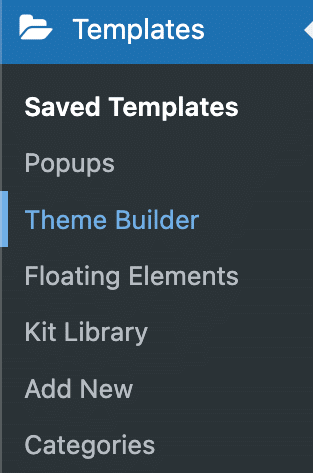
1. Open Elementor Theme Builder
- Go to your WordPress Dashboard.
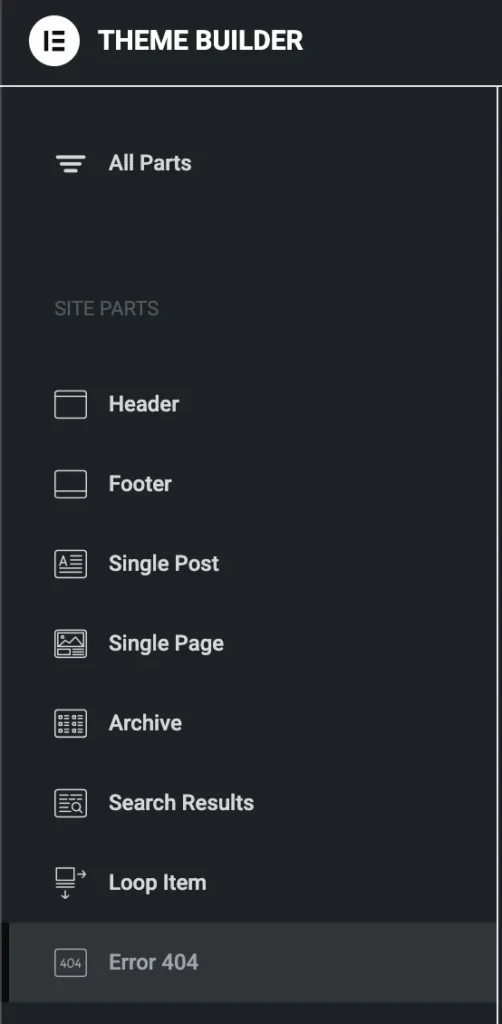
- Navigate to: Templates → Theme Builder.
- Click on the “Error 404” tab or select Add New → 404 Page.
2. Create a New 404 Template
- Give your new template a name (e.g., “Custom 404 Page”).
- Click Create Template.
Elementor will offer pre-designed blocks you can use, or you can start from scratch.
3. Design Your 404 Page
Now the fun part—customize your page using Elementor’s widgets. Consider adding:
- A friendly message like “Oops! Page not found.”
- A call-to-action button to go back to the homepage
- A search bar so users can find what they’re looking for
- Popular pages or recent posts
- Your site’s navigation menu
Pro Tip: Use imagery, animations, or humor to make the 404 experience less frustrating for visitors.
4. Style It Your Way
Use Elementor’s styling tools to match the page with your site’s branding. Adjust fonts, colors, layout spacing, and responsive settings for mobile and tablet views.
5. Set Display Conditions
Once you’re happy with your design, click Publish. Elementor will ask where you want this template to be applied.
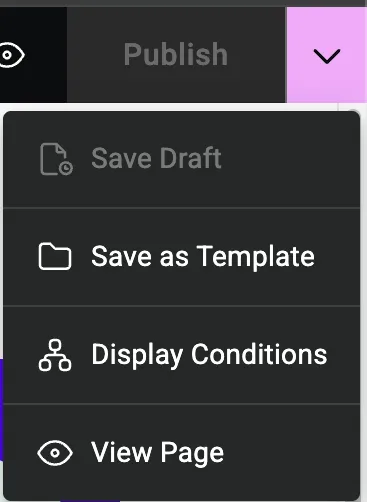
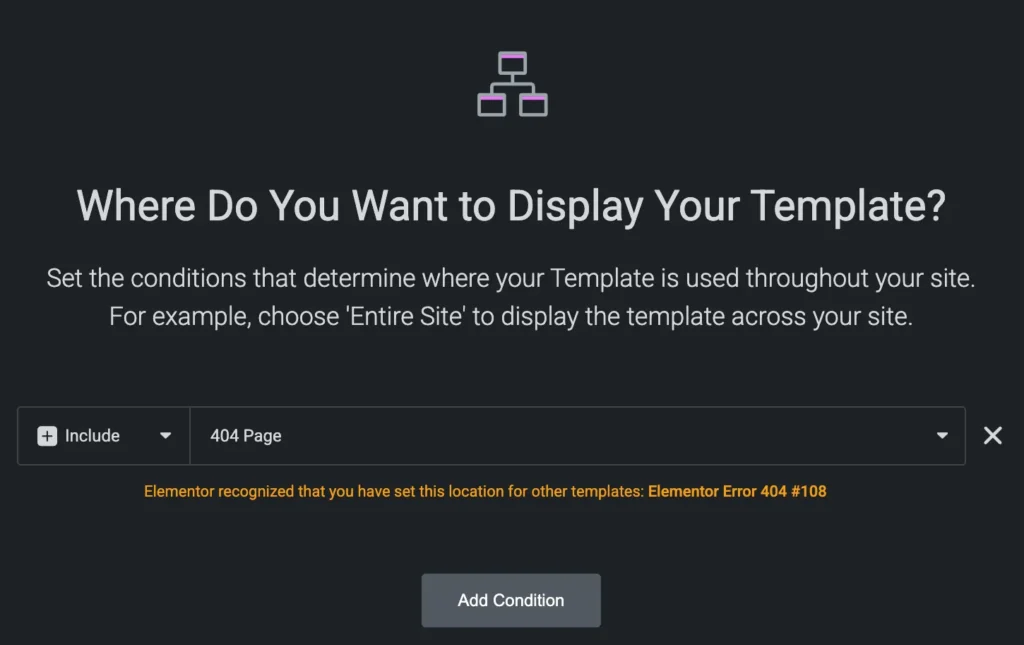
- Set the Display Condition to 404 Page.
- Save and close.
That’s it! Your custom 404 page in Elementor Pro is now live.
Tips for a High-Converting 404 Page
- Be Clear & Friendly: Let users know the page is missing—but do it with personality.
- Offer Navigation: Help users get back on track quickly.
- Include a Search Option: Let them search for what they need.
- Add CTAs: Suggest visiting your homepage or top pages.
- Keep It On-Brand: Match the tone and style of your overall website.
Conclusion
Designing a custom 404 page in Elementor Pro is a simple yet powerful way to improve your website’s user experience. Instead of letting visitors land on a bland, frustrating error page, you can guide them back to valuable content with a professionally designed, on-brand message. With Elementor Pro’s Theme Builder, you have full creative control to turn a dead end into a new opportunity—no coding required.
Whether you’re showcasing links, adding a search bar, or simply injecting some personality into your error page, creating a custom 404 page helps keep users engaged and encourages them to stay on your site longer.
Why a Generic 404 Page Destroys Conversions
A 404 error occurs when a visitor follows an expired link, mistypes a URL, or accesses deleted content. Default server 404 pages look broken and technical (“404 Not Found – nginx”), prompting immediate user bounces. A custom branded 404 page retains visitors and guides them back into your conversion funnel:
Key Elements of a Successful 404 Error Template
- Empathetic, Human Tone: Acknowledge the missing page lightheartedly (e.g., “Oops! That page seems to have moved or taken a vacation”).
- Prominent Search Bar: Place an instant Search Form widget so visitors can look up the keyword they were seeking immediately.
- Quick Links Navigation: Provide direct shortcut buttons to your most popular areas: Homepage, Services, Blog, Contact.
- Lead Magnet or Contact CTA: Offer an option to report the broken link or reach out directly to customer support.
404 Page Optimization Checklist
| Checklist Item | Technical Requirement | Importance |
|---|---|---|
| HTTP Status Code | Must return true 404 HTTP Header | Ensures search engines drop dead URLs and do not index empty error pages. |
| Header & Footer | Keep global navigation intact | Provides standard exit routes for lost visitors. |
| Search Form | Prominent centered search field | Directs lost traffic to intended content without leaving your domain. |
Need custom template engineering, 301 redirect management, or enterprise WordPress development? Explore our WordPress agency services at CV World.
Frequently Asked Questions
Ready to Build Professional Websites Faster?
Supercharge your WordPress design workflow with 100+ premium widgets, theme builder capabilities, and dynamic WooCommerce templates.
Yes. Elementor Pro hooks into WordPress’s native 404.php template hierarchy, ensuring the server sends a proper HTTP 404 status code to search engines.
No. Google considers mass homepage redirects as “Soft 404s” and penalizes sites for poor user experience. Presenting a helpful 404 page with search options is the SEO best practice.
Simply navigate to any non-existent URL on your website, for example: example-site.com/random-test-page-404/.
Use Rank Math SEO’s built-in 404 Monitor or the Redirection plugin to monitor error logs and set up 301 permanent redirects for high-traffic broken links.
No. When implemented using modern clean-code standards, responsive Flexbox containers, and server-side caching, your website maintains rapid sub-second loading speeds and easily passes Google Core Web Vitals assessments.
Need Custom Elementor Pro Development or Speed Optimization?
Partner with CV World lead WordPress engineers for custom Theme Builder development, WooCommerce integrations, and guaranteed 90+ Core Web Vitals.