To create a custom WooCommerce Cart Page with Elementor Pro: (1) create or edit your existing Cart page with Elementor, (2) drag the dedicated Cart widget into your container, (3) choose between a 2-Column or 1-Column layout, (4) customize typography, coupon input boxes, table borders, and the “Proceed to Checkout” button, and (5) configure WooCommerce → Settings → Advanced to ensure the new page is mapped as the official Cart endpoint.
Key Takeaways
- Replace default WooCommerce shortcode with the dedicated Elementor Pro Cart widget.
- Customize coupon forms, cart totals, and checkout transition buttons visually.
- Maintain clear cross-sell recommendations directly below the cart table.
- Ensure mobile viewports display sticky checkout buttons to reduce cart abandonment.
The Elementor Cart Page refers to a custom-designed WooCommerce cart page that is built and styled using Elementor Pro, a popular drag-and-drop WordPress page builder.
By default, WooCommerce provides a standard cart page slot deposit pulsa where customers can view products they’ve added to their cart, update quantities, apply coupons, and proceed to checkout. However, this default page is quite basic in terms of design and layout.
With Elementor Pro, you can:
- Replace the default WooCommerce cart layout with a custom design
- Use the WooCommerce Cart Widget provided by Elementor Pro
- Add additional design elements like headings, trust badges, images, progress indicators, or promotional messages
- Fully control the look and feel of the page to match your brand
Benefits of Using an Elementor Cart Page:
- Improved user experience: Clean and intuitive layout
- Responsive design: Works well on all devices
- Customization flexibility: You can personalize everything — colors, fonts, spacing, and more
- Marketing enhancements: Add upsells, related products, or urgency timers
So, an Elementor Cart Page is essentially a WooCommerce cart page that’s been customized using Elementor Pro’s visual editor and WooCommerce widgets.
Why Customize the WooCommerce Cart Page?
The default WooCommerce cart page is functional but often lacks visual appeal. Customizing it allows you to:
- Match the design with your brand
- Improve mobile responsiveness
- Add upsells, trust badges, and other conversion-boosting elements
- Optimize the layout for a smoother checkout experience
Prerequisites
Before getting started, make sure you have the following:
- A WordPress website with WooCommerce installed
- Elementor Pro plugin installed and activated
- WooCommerce pages set up correctly
How to Create a WooCommerce Cart Page
Step 1: Set Up the Default Cart Page in WooCommerce
WooCommerce automatically creates a cart page when installed. To check or change it:
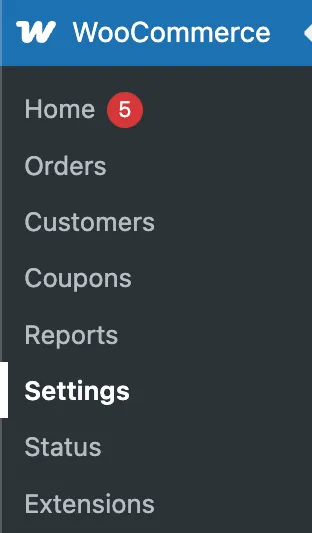
- Go to WooCommerce > Settings > Advanced
- Under Cart Page, ensure a page is assigned (e.g., “Cart”)
- If not, create a new page and assign it here
This page will be used as your Elementor cart page.
Step 2: Create a New Elementor Template
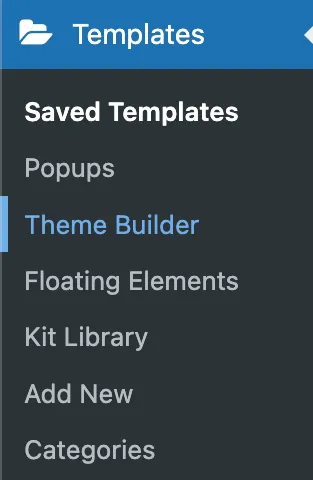
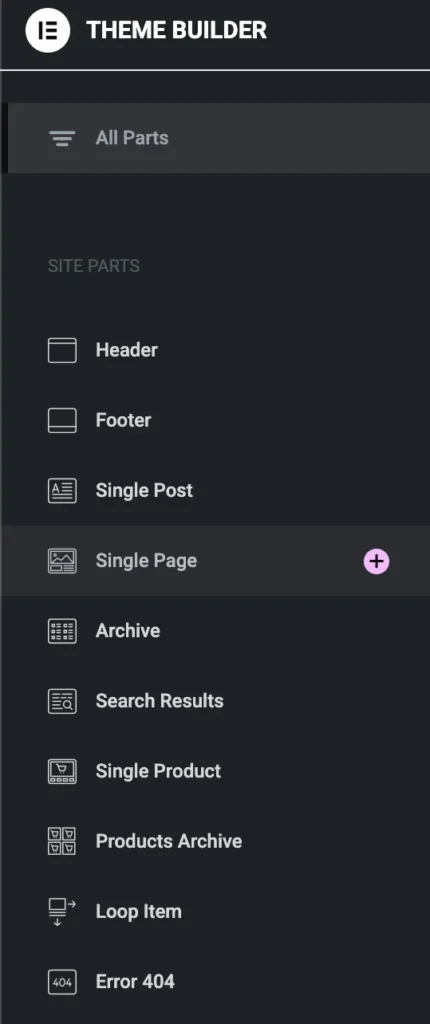
- Navigate to Templates > Theme Builder in your WordPress dashboard
- Click Add New and choose Single Page
- Name your template (e.g., “Custom Cart Page”)
- Click Create Template
Step 3: Add the WooCommerce Cart Widget
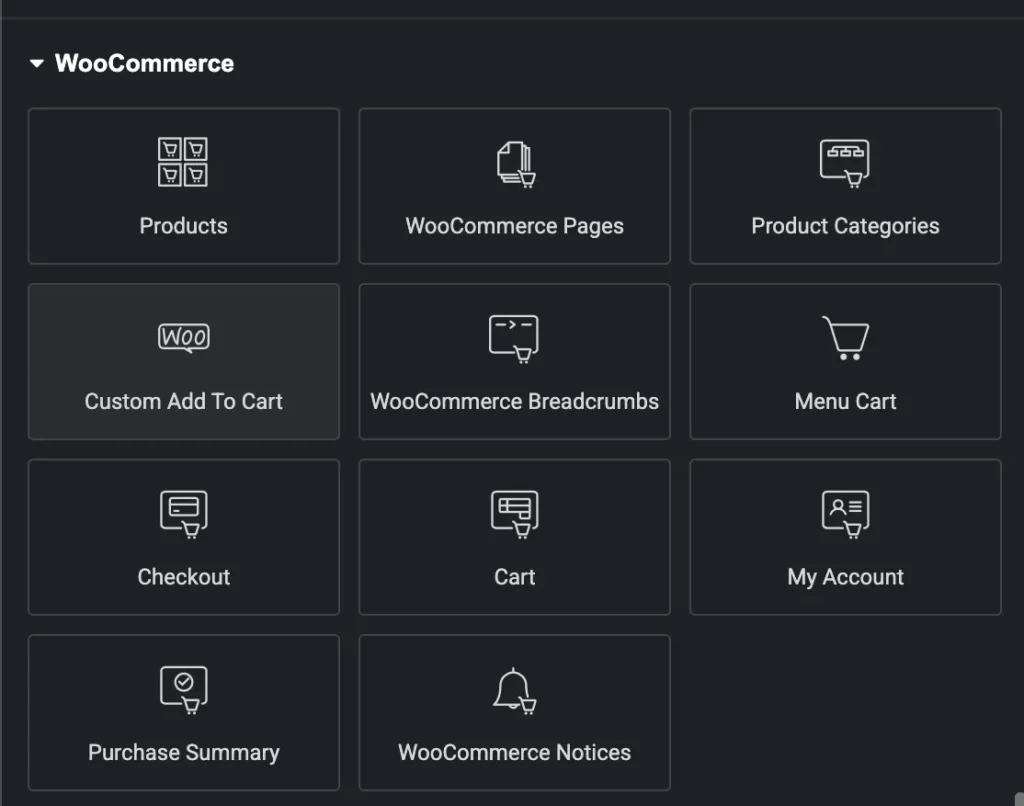
With Elementor Pro, you can drag and drop WooCommerce widgets:
- In the Elementor editor, search for the Cart widget
- Drag the WooCommerce Cart widget into your layout
- Customize the layout using Elementor’s styling options:
- Change typography, colors, and spacing
- Adjust button styles
- Enable or disable coupon code fields
This is where your Elementor cart page starts to come to life.
Step 4: Enhance the Page with Additional Elements
To make your cart page more engaging:
- Add trust badges to reassure customers
- Insert progress bars to show checkout steps
- Include cross-sell or upsell products
- Use sections and columns to structure the content neatly
These additions help create a more professional and effective Elementor cart page.
Step 5: Set the Display Conditions
Once your design is ready:
- Click Publish
- Set the display condition to include the cart page
- Save and close
Now, when customers visit the cart, they’ll see your new Elementor cart page.
Step 6: Test the Cart Page
Always test your custom cart page to ensure:
- It displays correctly on all devices
- The cart functionality works (add/update/remove products)
- Styling looks consistent with your brand
Example: “Team Members” Card Page Using Elementor
Layout Structure:
- Section: Full width
- Inner Section (3 or 4 columns depending on screen size)
- Card Widget (or manually built using: Image, Heading, Text Editor, Button)
- Inner Section (3 or 4 columns depending on screen size)
Card Example (Each Card Includes):
- Image: Headshot or Product photo
- Heading: Name or Title
- Text Editor: Role or Description
- Button: “Learn More” / “Read More”
Visual Structure (One Card)

Design Tips in Elementor:
- Use Box Shadow for elevation.
- Set Padding/Margin for spacing.
- Use Hover Effects on button or card.
- Use Responsive Controls for mobile layout.
Conclusion
Designing a custom Elementor Cart Page with Elementor Pro allows you to take full control over your WooCommerce store’s user experience. By replacing the default cart layout with a visually appealing and highly functional design, you can streamline the shopping process, boost engagement, and increase conversions. Whether you’re aiming for a minimalist style or a feature-rich interface, the Elementor Cart Page gives you the flexibility to build a cart experience that perfectly matches your brand and business goals.
Key Conversion Elements for Modern Cart Pages
The cart page is where buying intent transitions into transaction commitment. Default WooCommerce carts often look bare and clinical. Enhancing this step with high-trust design patterns reduces cart drop-offs dramatically:
1. Layout Architecture: 2-Column vs 1-Column
- 2-Column Layout (Desktop Recommended): Places product order items on the left (65% width) and sticky Cart Totals with the checkout CTA on the right (35% width). This keeps the checkout button visible above the fold regardless of cart size.
- 1-Column Layout (Mobile): Automatically stacks items vertically, keeping buttons full-width with 52px minimum height for easy thumb tapping.
2. Free Shipping Progress Bar
One of the most effective ways to increase Average Order Value (AOV) is adding a dynamic free-shipping progress tier (e.g., “Add $15 more to unlock Free Express Shipping!”). You can integrate this via lightweight hooks or plugins that render inside your Elementor cart container.
Cart Page Optimization & Security Matrix
| Optimization Element | Implementation Details | Conversion Impact |
|---|---|---|
| Security Trust Badges | Place SSL, McAfee, and payment gateway icons directly beneath Cart Totals | Alleviates payment security anxiety for first-time shoppers. |
| Coupon Field Styling | Keep coupon input collapsed or subtle | Prevents shoppers from leaving the site to search Google for coupon codes. |
| Cross-Sell Carousel | Display 2–3 relevant add-on items below the cart items list | Boosts Average Order Value by 10% to 20% on impulse accessories. |
Need custom WooCommerce development, cart drawer implementations, or high-speed checkout optimization? Explore our e-commerce development services at CV World.
Frequently Asked Questions
Ready to Build Professional Websites Faster?
Supercharge your WordPress design workflow with 100+ premium widgets, theme builder capabilities, and dynamic WooCommerce templates.
No. Elementor Pro’s Cart widget is built to hook into official WooCommerce template action hooks and API endpoints, maintaining compatibility across WooCommerce core updates.
Slide-out AJAX Cart Drawers provide the fastest shopping experience by avoiding page reloads, while dedicated Cart pages are ideal for complex orders requiring gift wrapping or shipping calculations.
Yes. The Elementor Cart widget allows you to design a custom template for when the cart is empty, featuring a personalized message and a ‘Return to Shop’ button.
Yes. You can enable automatic AJAX cart updating in the widget settings so totals update instantly when customers change item quantities.
No. When implemented using modern clean-code standards, responsive Flexbox containers, and server-side caching, your website maintains rapid sub-second loading speeds and easily passes Google Core Web Vitals assessments.
Need Custom Elementor Pro Development or Speed Optimization?
Partner with CV World lead WordPress engineers for custom Theme Builder development, WooCommerce integrations, and guaranteed 90+ Core Web Vitals.