To create a Popup in Elementor Pro: (1) go to Templates → Popups → Add New, (2) select a pre-made template or start with a blank container, (3) style your modal content, close button, and overlay background, (4) configure layout dimensions in Popup Settings (Gear icon → Width, Position, Overlay), (5) define Display Conditions (e.g., Entire Site or Specific Pages), and (6) set Triggers and Advanced Rules before publishing.
Key Takeaways
- Elementor Popup Builder supports fly-in banners, modal lightboxes, bottom notice bars, and full-screen overlays.
- Design popups using regular Elementor containers and widgets for complete visual consistency.
- Integrate form submissions directly with email automation tools like Mailchimp, Klaviyo, or ActiveCampaign.
- Always test popup dismiss buttons (close X) to ensure seamless user accessibility on small screens.
In this guide, you’ll discover how to create a popup in Elementor Pro using its powerful built-in Popup Builder. Whether you’re a beginner or an experienced designer, this step-by-step tutorial will help you master the process and make the most of Elementor Pro’s dynamic popup features.
Popups are one of the most effective tools in modern web design to capture user attention, grow email lists, promote special offers, and increase conversions. If you’re using Elementor Pro, you already have access to one of the most powerful and flexible popup builders available for WordPress.
In this article, you’ll learn how to create a popup in Elementor Pro — from designing your popup to setting when and where it appears on your site.
What Is a Popup?
A popup is a small window or message box that appears on top of a webpage while you’re browsing. It’s designed to grab the user’s attention and usually appears based on an action — like loading a page, clicking a button, scrolling, or trying to leave the site.
What Makes Elementor Pro Popups So Powerful?
Before diving into the steps, here’s why so many web designers choose Elementor Pro for creating popups:
- Fully customizable with drag-and-drop
- Built-in animations and motion effects
- Advanced display conditions and triggers
- Seamless integration with forms and marketing tools
- Mobile-responsive out of the box
How to create a popup in Elementor Pro?
Step 1: Access the Popup Builder
To get started, go to your WordPress Dashboard, then:
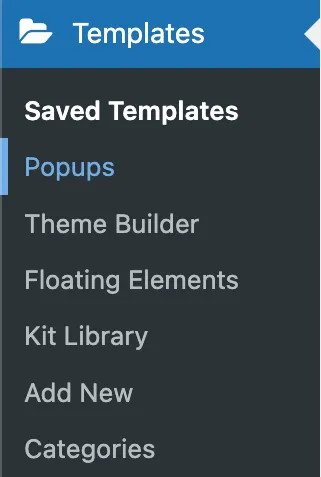
- Navigate to Templates > Popups
- Click “Add New”
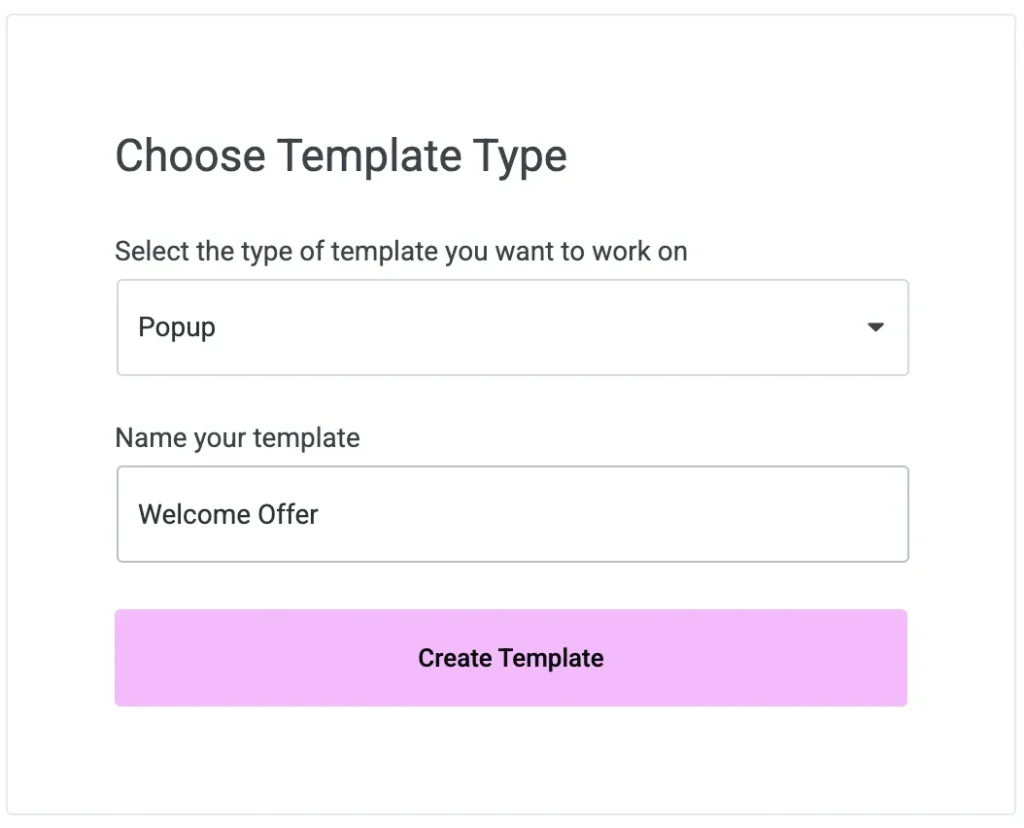
- Choose “Popup” as the type of template
- Give your popup a name (e.g., “Welcome Offer”) and click “Create Template”
Elementor will now open its editor with a library of popup templates.
Step 2: Choose or Design Your Popup
You can either:
- Select a pre-designed popup template from Elementor’s library
- Or close the library and start designing from scratch
Use the drag-and-drop editor to add:
- Text and Headings
- Images or Icons
- Forms (like a newsletter signup)
- Buttons (for CTAs or external links)
- Countdown Timers, Videos, or anything else Elementor offers
Design your popup just like you would any other Elementor section — add style, motion effects, padding, backgrounds, and more.
Step 3: Customize Popup Settings
Click the Settings (gear icon) in the bottom-left of the editor. Here you can:
- Set popup size (width & height)
- Choose entrance animations (like fade, slide, zoom)
- Set overlay settings (color, close on overlay click)
- Enable or disable the close button
This gives you control over how the popup looks and behaves visually.
Step 4: Set Display Conditions, Triggers & Rules
After designing your popup, click “Publish”. Elementor will prompt you to choose:
Display Conditions
Specify where your popup will appear — for example:
- Entire site
- Specific pages or posts
- Categories or tags
- Logged-in users only
Triggers
Set when the popup should appear, such as:
- On page load
- After scroll
- On click (great for CTA buttons)
- After inactivity
- On exit intent
Advanced Rules
Fine-tune popup behavior with rules like:
- Show after X page views
- Show after X sessions
- Show only if arriving from a specific URL or site
- Limit popup to once per user
These settings allow you to fully control the timing and targeting of your popup.
Step 5: Save and Test Your Popup
Click “Save & Close”, then visit the page you assigned the popup to. Test it on desktop, tablet, and mobile to make sure everything works and looks perfect.
Tip: Use incognito mode to test exit intent and scroll triggers.
Elementor Popup Trigger Comparison & Conversion Benchmarks
| Popup Trigger | Optimal Delay Setting | Average Conversion Rate |
|---|---|---|
| Exit Intent | Instant upon mouse exit | 4.5% – 7.2% |
| Scroll Depth | 50% – 65% of page height | 3.8% – 5.9% |
| On Click (Two-Step Opt-in) | User-initiated click | 18% – 32% (Highest Intent) |
Conclusion
Knowing how to create a popup in Elementor Pro gives you the flexibility to design stunning, behavior-based popups without any coding or extra plugins. Whether you want to grow your mailing list, showcase a product, or deliver an announcement, Elementor Pro’s Popup Builder makes it easy and effective.
With endless design possibilities and powerful targeting options, Elementor Pro ensures your popups aren’t just beautiful — they’re smart, strategic, and impactful.
Configuring the Ideal Popup Dimensions & Position
Popups are not limited to centered lightboxes. Under Popup Settings (bottom-left Gear icon), you can choose several display styles:
- Classic Modal Dialog (Center / Center): Ideal for high-priority announcements and email newsletter opt-ins. Set width to 600px – 750px with a dimmed dark backdrop overlay.
- Slide-In Flyout (Bottom / Right): Less intrusive, perfect for customer feedback surveys, promotional banners, or recent sales notifications.
- Top / Bottom Notification Ribbon (Full Width): Set position to Top or Bottom, width to 100%, and height to Fit to Content for persistent cookie consent or sale announcement tickers.
- Full-Screen Takeover: Set width to 100vw and height to 100vh for immersive splash screens, search overlays, or age gates.
Essential Accessibility (A11y) & Usability Checklist
- Prominent Close Button: Ensure the close button (X) has high color contrast and a minimum touch target of 44px x 44px.
- ESC Key Dismissal: In Popup Settings → General, verify that Close on ESC key press and Close on Overlay Click are enabled.
- Accessible Focus Trap: Prevent screen readers from reading background page content while the popup modal is open.
Looking for custom popup designs, lead generation funnels, or conversion optimization? Explore our digital agency services at CV World.
Frequently Asked Questions
Ready to Build Professional Websites Faster?
Supercharge your WordPress design workflow with 100+ premium widgets, theme builder capabilities, and dynamic WooCommerce templates.
Yes. Add a custom CSS class (e.g., open-my-popup) to the popup under Advanced settings, then link your menu item or button to #open-my-popup.
Yes. You can place the native Elementor Login widget inside a popup modal to allow users to sign in without leaving their current page.
No. Elementor Pro’s intelligent asset loader only enqueues popup scripts and HTML on pages that match your specified Display Conditions.
Inside the Elementor editor, click the Eye icon at bottom left to preview the popup layout directly with live styling and responsive controls.
No. When implemented using modern clean-code standards, responsive Flexbox containers, and server-side caching, your website maintains rapid sub-second loading speeds and easily passes Google Core Web Vitals assessments.
Need Custom Elementor Pro Development or Speed Optimization?
Partner with CV World lead WordPress engineers for custom Theme Builder development, WooCommerce integrations, and guaranteed 90+ Core Web Vitals.