
To create a Single Post Template in Elementor Pro: (1) navigate to Templates → Theme Builder → Single Post and click Add New, (2) select a blank canvas and add structural containers, (3) insert dynamic widgets (Post Title, Post Info metadata, Featured Image, and Post Content), (4) add author bios, social sharing, and related posts, and (5) set Display Conditions to Include → All Posts.
Key Takeaways
- Design a unified single post layout using Post Title, Post Content, Featured Image, and Author widgets.
- Include floating Table of Contents and social sharing buttons to boost dwell time.
- Display related articles dynamically using Loop Grids filtered by common categories.
- Set strict typography hierarchies and line-heights (1.75) for optimal long-form readability.
Designing a custom blog post layout can take your website from basic to beautifully branded. If you’re using Elementor Pro, one of the most powerful tools at your fingertips is the ability to design a Single Post in Elementor Pro. This feature lets you build a custom template that automatically applies to all your blog posts—saving you time while keeping your site consistent and visually appealing.
In this article, we’ll walk you through how to create a Single Post in Elementor, even if you’re not a design expert.
What is a Single Post in Elementor Pro?
A Single Post template controls the design of individual blog posts on your WordPress site. With Elementor Pro, you can create one dynamic layout and apply it to all your blog posts automatically. This gives you full control over the appearance of:
- Post titles
- Featured images
- Content
- Metadata (like date, author, and category)
- Comments and navigation
- Related posts and more
How to Create a Single Post in Elementor Pro (Step-by-Step)
1. Open Elementor Theme Builder
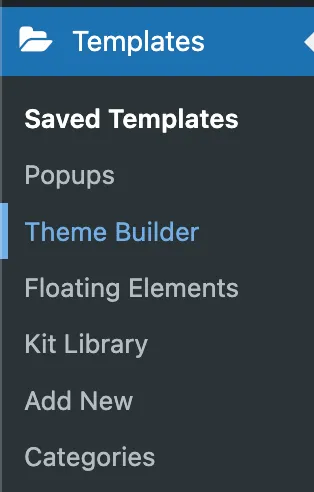

Start by accessing Elementor’s Theme Builder:
- Go to your WordPress Dashboard.
- Navigate to Templates → Theme Builder.
- Select the “Single” tab and click “Add New”.

- Choose Single Post as the type of template, then click Create Template.
2. Choose a Pre-Made Template (Optional)
Elementor provides several beautiful pre-designed Single Post in Elementor templates. You can import one and customize it—or start from scratch by closing the template library.
3. Add Core Elements to Your Layout
Use Elementor widgets to build out your blog post layout. Here are the essentials:

- Post Title – Displays your blog post title dynamically.
- Post Content – Pulls in the actual content of each post.
- Featured Image – Automatically shows the featured image of each post.
- Post Info – Adds author, date, category, and more.
- Post Navigation – Allows users to move between posts.
- Author Box and Comments – Boost engagement with built-in interactivity.
4. Insert Dynamic Tags
Use Elementor’s dynamic tags to ensure each blog post pulls in the correct information. For example:
- Add the Post Title using the Dynamic Field.
- Insert the Featured Image using the Featured Image widget.
- Display the author name, publish date, and categories with the Post Info widget.
5. Style Your Layout
Customize fonts, spacing, colors, and layouts to match your brand. Make sure your Single Post in Elementor design looks great on desktop, tablet, and mobile.
6. Set Display Conditions
When you’re done designing:
- Click Publish.
- Set the Display Conditions to apply this template to All Posts or specific categories or tags.
- Click Save & Close.
Now, every new blog post will automatically use this template.
Why Use Elementor for Your Single Post Layout?
Using Elementor Pro to create your Single Post in Elementor gives you:
- Design Freedom – No more relying on default WordPress layouts.
- Dynamic Content – Content updates automatically for each post.
- Mobile Responsiveness – Easily design layouts for all screen sizes.
- Time Efficiency – Design once, apply everywhere.
Pro Tips
- Add a “Related Posts” widget at the bottom of your post to increase engagement.
- Use Advanced Custom Fields (ACF) for even more dynamic content.
- Make use of global fonts and colors to keep your design consistent across your site.
Conclusion
Creating a Single Post in Elementor Pro is one of the most powerful ways to customize your WordPress blog without touching a line of code. With Elementor Pro’s intuitive drag-and-drop builder, you can design a beautiful, consistent layout that automatically applies to all your blog posts—saving you time and ensuring your content always looks its best.
Whether you’re running a personal blog, a news site, or a content-heavy platform, using a custom single post template allows you to elevate your design, improve user experience, and showcase your brand more professionally.
Ready to take your blog to the next level? Start designing your Single Post in Elementor Pro today and turn every post into a polished, branded experience.
Essential Components of an Enterprise-Grade Single Post Template
| Component | Elementor Widget | SEO & UX Impact |
|---|---|---|
| Article H1 Heading | Post Title | Guarantees exactly one semantic H1 tag for Googlebot crawling. |
| Author & Date Metadata | Post Info | Critical for Google E-E-A-T (Experience, Expertise, Authoritativeness, Trustworthiness). |
| Article Body | Post Content | Renders the full article written in Gutenberg or classic editor seamlessly. |
| Table of Contents (TOC) | Table of Contents Widget | Enables instant Google search sitelink jumps in SERP listings. |
| Author Bio Box | Author Box | Displays author credentials, bio, and social links to solidify search authority. |
Sticky Sidebar Layout with Flexbox Containers
Modern editorial designs feature a main content column (70% width) and a sticky sidebar (30% width):
- Create a parent Container with Direction: Row and Align Items: Stretch.
- Place your Post Content in the primary left container.
- In the right sidebar container, insert a newsletter opt-in, promotional banner, and Table of Contents.
- Under Sidebar Container → Advanced → Motion Effects, set Sticky: Top with an offset of 80px. The sidebar floats smoothly as readers scroll down long articles.
Need custom publishing architectures, dynamic editorial hubs, or enterprise WordPress development? Explore our WordPress development solutions at CV World.
Frequently Asked Questions
Ready to Build Professional Websites Faster?
Supercharge your WordPress design workflow with 100+ premium widgets, theme builder capabilities, and dynamic WooCommerce templates.
No. Your written content and images remain safely stored in the WordPress database. The Single Post template simply dictates the visual frame and styling that wraps your content.
Yes. You can create multiple templates and set conditions like Include → In Category → Case Studies for a bespoke case study layout.
The Table of Contents widget creates anchor links for H2 and H3 headings, which Google frequently displays as clickable jump links directly in organic search results.
Yes. The Post Content widget renders all native Gutenberg blocks, images, tables, embeds, and custom HTML flawlessly.
No. When implemented using modern clean-code standards, responsive Flexbox containers, and server-side caching, your website maintains rapid sub-second loading speeds and easily passes Google Core Web Vitals assessments.
Need Custom Elementor Pro Development or Speed Optimization?
Partner with CV World lead WordPress engineers for custom Theme Builder development, WooCommerce integrations, and guaranteed 90+ Core Web Vitals.