

To create a Multi-Step Form in Elementor Pro: (1) drag the Form widget onto your canvas, (2) add a new item and change its Type to Step, (3) organize input fields beneath each step separator, (4) customize step navigation buttons (Next, Previous, Submit) and choose a progress indicator (Numbers, Progress Bar, or Text), and (5) configure actions after submit (Email, Webhook, Redirect) to process completed entries.
Key Takeaways
- Multi-step forms break long inquiries into manageable stages, increasing form completion by up to 300%.
- Use Step widgets inside Elementor Pro Forms with visual progress bars or step numbers.
- Group related fields (Personal Info > Project Details > Budget) logically.
- Validate required fields at each step before allowing users to advance to the next screen.
How to Create a Multi-Step Form in Elementor Pro is a common question for anyone looking to improve user experience and boost form completion rates on their website. Long forms can overwhelm visitors, but by breaking them into smaller, easy-to-follow steps, you can make the process feel smoother and more engaging. In this guide, we’ll walk you through the entire process of building a multi-step form using Elementor Pro’s built-in tools—no extra plugins or coding needed. Whether you’re creating a contact form, quiz, or lead capture form, this step-by-step tutorial will help you do it with ease and style.
What is a Multi-Step Form in Elementor Pro?
A multi-step form in Elementor Pro is a type of form that splits input fields across multiple steps or pages, instead of showing all fields at once on a single screen.
How to Create a Multi-Step Form in Elementor Pro?
Step 1: Add a New Form Widget
- Open your page with Elementor.
- Drag and drop the Form widget onto your page.
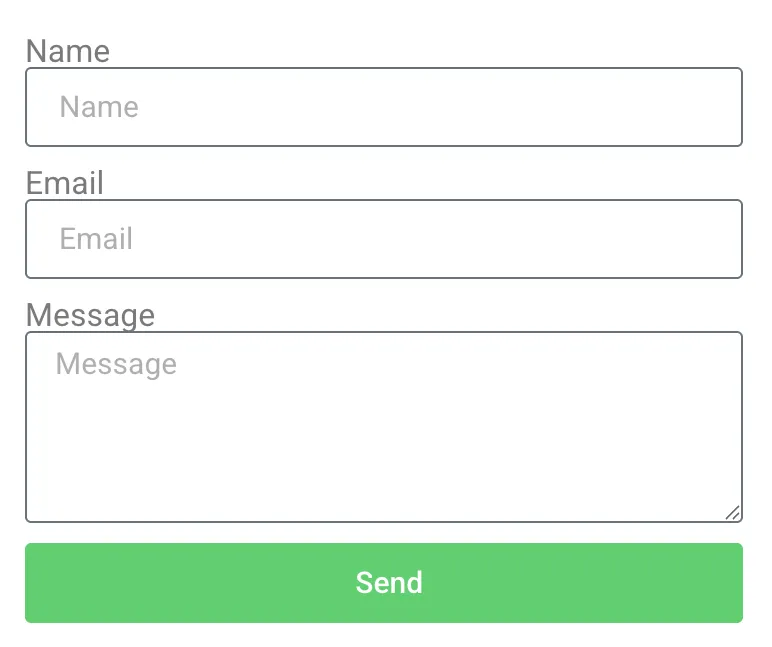
- You’ll see a default form with Name, Email, and Message fiel
Step 2: Add Multiple Steps
Elementor allows you to add steps using the “Step” field type.
- In the Form Fields section, click “Add Item”.
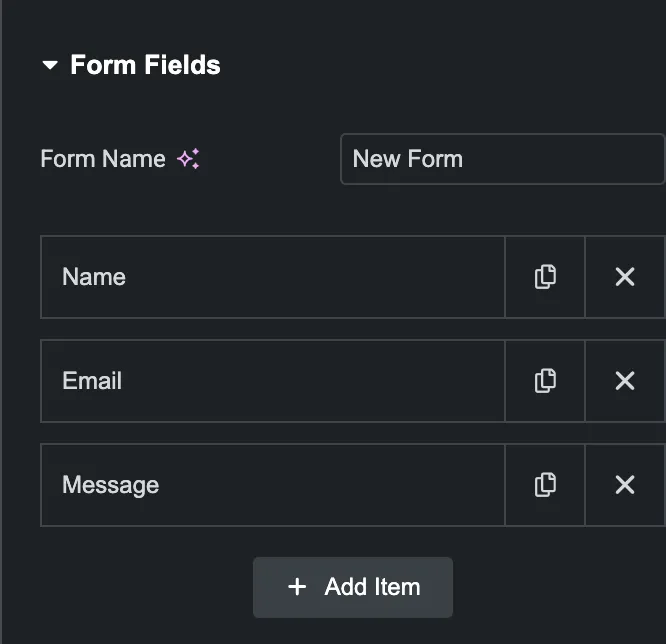
- Change the field type to “Step”.
- Add a label for each step (e.g., “Step 1”, “Step 2”).
Add a Step field before the group of fields you want in that section. Each Step field acts like a divider between steps.
Example Layout:
- Step 1
- Name
- Step 2
- Phone
- Address
- Step 3
- Message
- Submit Button
You can re-order the fields using drag-and-drop.
Step 3: Customize Buttons
By default, Elementor adds Next and Previous buttons for navigation.
To customize them:
- Scroll down to the “Buttons” section.
- You can change:
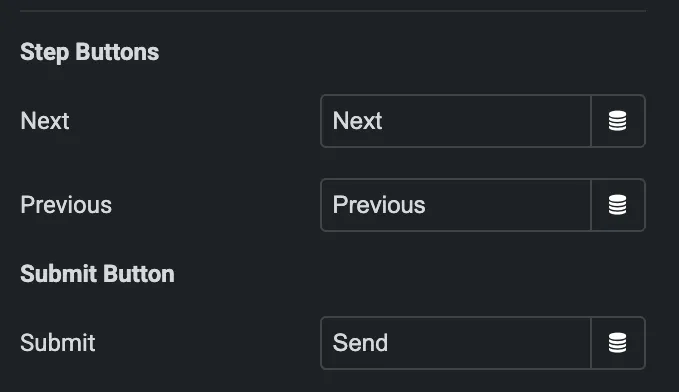
- Next Label (e.g., “Continue”)
- Previous Label (e.g., “Back”)
- Submit Button Text (e.g., “Send Now”)
You can also style each button individually in the Style tab.
Step 4: Configure Actions After Submit
To set what happens after the form is submitted:
- Go to the “Actions After Submit” panel.
- Choose your action (e.g., Email, Webhook, Redirect).
- Configure each action as needed.
For email notifications, make sure to set the correct To and From Email fields.
Step 5: Style the Form
Now go to the Style tab to adjust:
- Colors for each step
- Progress bar (optional)
- Input field styling
- Button hover effects
Elementor Pro gives you full control over every element’s look.
Step 6: Test the Form
Before publishing:
- Test on desktop and mobile
- Fill out all fields to ensure each step works
- Check if the final action (e.g., email or redirect) works properly
Pro Tips
- Progress Bar: You can show progress indicators for better UX (found under Form > Additional Options).
- Conditional Logic: Use custom code or third-party add-ons (like Elementor Custom Forms Addon or [Crocoblock JetFormBuilder]) to create logic-based forms.
- Accessibility: Make sure each step is clearly labeled for screen readers and navigation.
Special Features of Multi-Step Forms in Elementor Pro
1. Built-in “Step” Field Type
- Easily divide your form into multiple steps without coding.
- Drag and drop a Step field before any section of the form to start a new step.
2. Next / Previous Navigation Buttons
- Automatic buttons for users to navigate between steps.
- Labels can be customized (e.g., “Next Step,” “Go Back”).
3. Progress Indicators
- Optional visual progress bar that shows users how far along they are.
- Can be styled to match your brand.
Improves engagement and reduces form abandonment.
4. Independent Field Validation per Step
- Fields in each step can be required and validated before moving to the next step.
- Prevents incomplete or incorrect submissions.
5. Responsive Design
- Mobile-friendly navigation with swipe or tap gestures.
- Steps stack properly on all screen sizes.
6. Fully Customizable Design
- Style every part of the form: buttons, progress bar, input fields, and even error messages.
- Use Elementor’s styling controls for spacing, typography, and animation.
Bonus: Developer-Friendly
- Use Elementor’s Form ID and custom classes to target specific steps with JavaScript or custom CSS for advanced behavior.
- Integrates with Elementor’s Dynamic Tags for personalized form behavior.
Conclusion
Creating a multi-step form in Elementor Pro is a powerful way to enhance user experience, reduce form abandonment, and increase conversions. By breaking your form into clear, easy-to-follow steps, you guide users through the process without overwhelming them — perfect for lead generation, applications, surveys, and more.
With Elementor Pro’s Step field, custom button controls, progress indicators, and styling options, you have everything you need to build a beautiful and fully functional multi-step form — no extra plugins or coding required.
Take the time to test your form on all devices, optimize each step for clarity, and connect it with your desired actions (email, redirect, integrations) to create a seamless and professional form experience.
Why Multi-Step Forms Double Lead Generation Conversions
Presenting a prospect with a single overwhelming form containing 12 input fields triggers psychological resistance. Breaking the same questions into 3 or 4 digestible steps reduces cognitive load:
- The Foot-in-the-Door Technique: Step 1 should ask simple, low-friction questions (e.g., “What service are you looking for?”). Once visitors commit to step 1, they are 85% more likely to complete personal contact fields on step 3.
- Visual Progress Gamification: Adding a progress bar or numbered steps gives visitors a clear visual finish line, minimizing abandonment.
- Organized Data Collection: Group related fields into intuitive phases: (1) Project Scope → (2) Timeline & Budget → (3) Contact Details.
Step-by-Step Form Design & Progress Bar Customization
- In Elementor Form settings, add your first item and set Type to Step. Name it Step 1: Your Needs.
- Add your qualification questions (Select dropdowns, Radio buttons, Checkboxes).
- Add another item and set Type to Step. Name it Step 2: Contact Info.
- Add Name, Email, Phone, and Company inputs.
- In the Steps Settings tab, choose your preferred indicator:
- Progress Bar: Shows a clean animated fill percentage across the top.
- Number & Text: Displays step numbers inside circular badges with descriptive sub-labels.
Multi-Step Form Architecture Matrix
| Step | Field Types Included | Friction Level |
|---|---|---|
| Step 1: Qualification | Radio buttons, Select dropdown (Service requested) | Ultra-Low (One-click answers) |
| Step 2: Project Details | Estimated Budget, Expected Launch Date | Low |
| Step 3: Contact & Submit | Full Name, Work Email, Phone Number, Submit CTA | Medium (Captured easily due to sunk cost) |
Need custom lead capture funnels, multi-step calculation forms, or CRM integrations? Explore our WordPress development services at CV World.
Frequently Asked Questions
Ready to Build Professional Websites Faster?
Supercharge your WordPress design workflow with 100+ premium widgets, theme builder capabilities, and dynamic WooCommerce templates.
Yes. Elementor Pro automatically validates all required fields in the current step before allowing the user to click ‘Next’.
No. Multi-step functionality is built directly into Elementor Pro’s native Form widget via the ‘Step’ field type.
Yes. Under Actions After Submit, select Webhook to send complete submission payloads to Zapier, Make, HubSpot, or custom APIs.
You can listen for Elementor’s custom JavaScript step-change events and fire custom GA4 events for form_step_1_complete, form_step_2_complete, etc.
No. When implemented using modern clean-code standards, responsive Flexbox containers, and server-side caching, your website maintains rapid sub-second loading speeds and easily passes Google Core Web Vitals assessments.
Need Custom Elementor Pro Development or Speed Optimization?
Partner with CV World lead WordPress engineers for custom Theme Builder development, WooCommerce integrations, and guaranteed 90+ Core Web Vitals.