

To design a Custom Archive Page in Elementor Pro: (1) navigate to Templates → Theme Builder → Archive and click Add New, (2) insert the Archive Title and Archive Description widgets to render taxonomy meta dynamically, (3) drag the Loop Grid widget to output post or product cards, (4) add a category filter bar or sidebar search filters, and (5) configure Display Conditions to apply across All Archives, specific categories, or custom taxonomies.
Key Takeaways
- Override default WordPress category and tag archives using Theme Builder Archive templates.
- Display dynamic archive titles, category descriptions, and total post count counters.
- Use Loop Grids to feature author avatars, reading times, and category pills.
- Maintain standard WordPress pagination to ensure complete search engine indexation.
How to Design Archive Page in Elementor Pro is a question many WordPress users ask when they want more control over how their blog posts, categories, or custom post types are displayed. By default, WordPress applies a standard layout to archive pages, which often lacks the customization and branding needed for a professional-looking site. With Elementor Pro, you can break free from these limitations and create archive pages that are visually compelling, user-friendly, and fully aligned with your site’s design.
In this guide, we’ll walk you through everything you need to know about how to design a custom archive page in Elementor Pro—from setting up your template and choosing the right widgets, to applying dynamic content and fine-tuning layout settings. Whether you’re building a blog, portfolio, or online shop, this tutorial will help you deliver a polished and personalized browsing experience to your visitors.
Understanding WordPress Archive Pages
In WordPress, archive pages display groups of content based on specific criteria, such as:
- Categories: Posts grouped under a particular category.
- Tags: Posts associated with specific tags.
- Date Archives: Posts published within a specific time frame.
- Author Archives: Posts authored by a particular user.
- Search Results: Posts that match a user’s search query.
- Custom Post Types: Content types like portfolios, testimonials, or events.
By default, WordPress applies a standard template to these archive pages. However, Elementor Pro allows you to override this default and design custom archive templates that provide a unique user experience.
Steps to Create a Custom Archive Page
1. Set Up the Archive Page in WordPress
Before diving into Elementor:

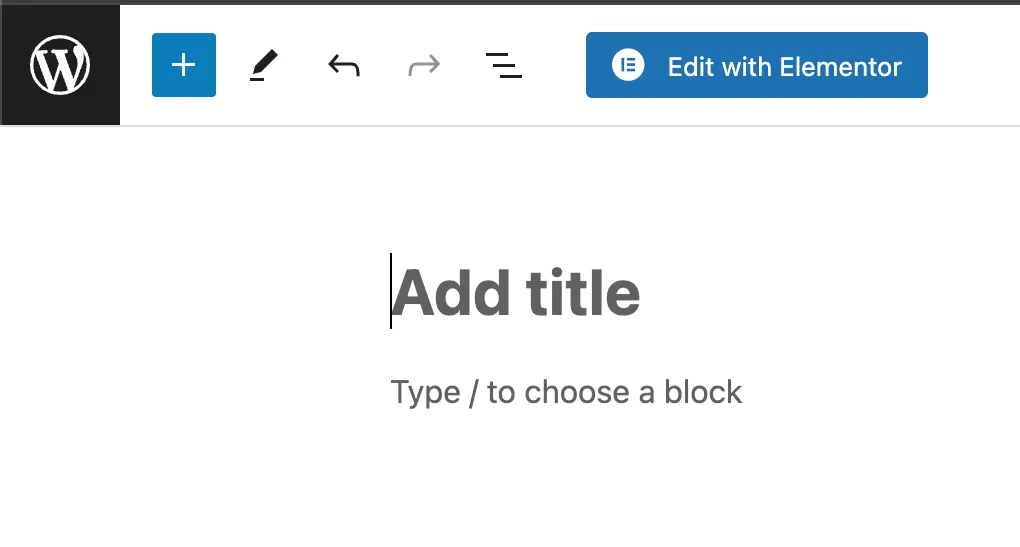
- Navigate to Pages > Add New in your WordPress dashboard.
- Title the page (e.g., “Blog”).
- Publish the page.
Then, assign this page as your posts page:
- Go to Settings > Reading.
- Under Your homepage displays, select A static page.
- For Posts page, choose the blank page you just created.
- Save Changes
2. Create a New Archive Template in Elementor Pro
With Elementor Pro, you can design a custom archive template:
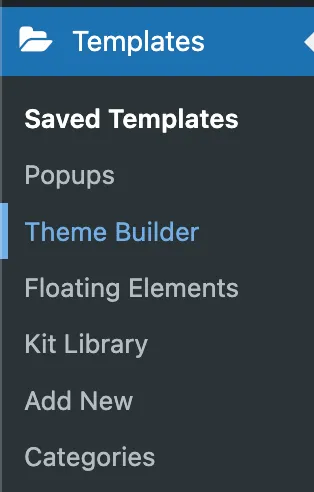


- Navigate to Templates > Theme Builder.
- Click on Add New, select Archive, and name your template (e.g., “Custom Blog Archive”).
- Click Create Template.
Elementor will open the editor, allowing you to design your archive page. You can choose to start from scratch or insert a pre-designed block.
3. Design the Archive Layout
Utilize Elementor’s widgets to craft your desired layout:

- Archive Posts Widget: Displays a list of posts from the current archive.
- Archive Title Widget: Shows the title of the current archive (e.g., “Category: News”).
- Archive Description Widget: Provides a description of the current archive.
- Pagination Widget: Allows users to navigate through multiple pages of posts.
Customize each widget’s settings to match your design preferences. For instance, adjust the number of columns in the Archive Posts widget, or style the typography and colors to align with your brand.
4. Set Display Conditions
After designing your archive template, it’s crucial to set display conditions to determine where the template appears:
- Click Publish.
- In the Display Conditions window, click Add Condition.
- Choose where you want the template to be applied (e.g., All Archives, Specific Categories, Custom Post Types).
- Click Save & Close.
This ensures your custom archive template is applied to the appropriate pages on your site.
5. Enhance with Dynamic Content
To make your archive pages more engaging, consider adding dynamic content:
- Custom Fields: Use plugins like Advanced Custom Fields (ACF) to add custom fields to your taxonomies.
- Dynamic Tags: Incorporate dynamic tags to display custom field values, such as unique images or descriptions for each category.
- Listing Grid: Utilize the Listing Grid widget to showcase items like portfolio projects or products in a grid layout.
By integrating dynamic content, you can create personalized and interactive archive pages that resonate with your audience.
Best Practices for Custom Archive Pages
- Consistent Branding: Ensure your archive pages align with your site’s overall branding, including colors, typography, and imagery.
- User Experience: Design intuitive navigation with clear categories, filters, and pagination to enhance user experience.
- Mobile Responsiveness: Optimize your archive pages for mobile devices to ensure accessibility across all platforms.
- SEO Optimization: Use SEO-friendly practices, such as descriptive titles and meta descriptions, to improve search engine rankings.
Conclusion
Designing a custom archive page in Elementor Pro not only enhances the visual appeal of your website but also improves user experience by presenting content in a structured, intuitive, and engaging way. With the powerful features of Elementor’s Theme Builder, you can easily create archive templates tailored to specific categories, tags, post types, or author archives — all without writing a single line of code.
From setting up your template and choosing the right widgets, to applying dynamic content and customizing design elements, Elementor Pro gives you full creative control. Whether you’re running a blog, an online store, or a portfolio, custom archive pages ensure that visitors can easily explore and discover your content.
By following the steps outlined in this guide and applying best practices for responsive design and SEO, you’ll be able to build archive pages that not only look great but function seamlessly across all devices. The result? A more professional, user-friendly site that keeps visitors engaged and encourages deeper content exploration.
Ready to elevate your website’s structure and style? Dive into Elementor Pro and start creating archive pages that reflect your brand and content strategy — beautifully and efficiently.
Advanced Archive Template Features in Elementor Pro
Archive pages often serve as the primary landing page for SEO queries like “best marketing tools” or “summer shoes”. Elevate your archive template with these features:
1. Dynamic Taxonomy Headers
Ensure your archive template pulls titles and descriptions dynamically rather than using static text widgets:
- Use the Archive Title widget with Include Context turned OFF to display clean category names without prefix strings like “Category: “.
- Insert the Archive Description widget so category SEO descriptions entered in WordPress admin render automatically above the post grid.
2. Ajax-Powered Taxonomy Filtering
Allow visitors to filter posts or portfolio items without full page refreshes using the Taxonomy Filter widget linked directly to your Loop Grid.
Archive Layout Configuration Checklist
| Viewport | Column Count | Gap Spacing | UX Consideration |
|---|---|---|---|
| Desktop (> 1024px) | 3 or 4 Columns | 24px – 32px | Balances visual density and readability. |
| Tablet (768px – 1024px) | 2 Columns | 20px | Prevents cards from becoming overly narrow. |
| Mobile (< 768px) | 1 Column | 16px | Full-width cards for easy vertical thumb scrolling. |
Need custom archive architectures, custom post type filters, or high-performance WordPress development? Explore our WordPress development services at CV World.
Frequently Asked Questions
Ready to Build Professional Websites Faster?
Supercharge your WordPress design workflow with 100+ premium widgets, theme builder capabilities, and dynamic WooCommerce templates.
You can customize Blog Archives, Category Archives, Tag Archives, Author Archives, Date Archives, Custom Post Type Archives, and WooCommerce Product Archives.
In the Archive Title widget settings, simply toggle OFF the Include Context switch, and Elementor will output only the raw category name.
Yes. Using Elementor’s Loop Builder, you can add ACF dynamic tags inside the card template, displaying custom prices, locations, or ratings on each card.
Yes. Elementor Pro supports standard numbered pagination with proper rel="next" and rel="prev" tags that search engines crawl seamlessly.
No. When implemented using modern clean-code standards, responsive Flexbox containers, and server-side caching, your website maintains rapid sub-second loading speeds and easily passes Google Core Web Vitals assessments.
Need Custom Elementor Pro Development or Speed Optimization?
Partner with CV World lead WordPress engineers for custom Theme Builder development, WooCommerce integrations, and guaranteed 90+ Core Web Vitals.