Setting up a WordPress website for beginners requires: (1) registering a domain name and high-performance NVMe/LiteSpeed web hosting, (2) installing WordPress via one-click auto-installer, (3) configuring clean permalinks (/%postname%/) and SSL security, (4) installing a lightweight starter theme (Hello Elementor or Astra), and (5) installing essential security, SEO, and caching plugins. CV World offers free 1-on-1 Google Meet support to guide beginners through this entire setup process.
Key Takeaways
- Step-by-step guidance on domain registration, DNS pointing, and high-speed LiteSpeed hosting setup.
- Installing WordPress securely with SSL certificates, permalink structures, and admin credentials.
- Essential plugin stack: LiteSpeed Cache, Rank Math SEO, and Elementor visual website builder.
- CV World provides free 1-on-1 Google Meet onboarding sessions for new business owners.
Launching your first website can feel intimidating. Between choosing domain registrars, configuring DNS records, selecting web hosting, installing SSL certificates, and picking the right plugins, beginners often encounter frustrating technical hurdles. Worse, making poor configuration choices on day one can lead to slow loading speeds, database bloat, and security vulnerabilities.
At CV World, we believe everyone deserves access to enterprise-grade web engineering. That is why we provide this complete, beginner-friendly setup guide alongside free, complimentary 1-on-1 Google Meet technical support to help entrepreneurs, creators, and business owners launch their WordPress websites with confidence.
1. Phase 1: Securing Your Domain & High-Speed Hosting
The foundation of any successful WordPress website is fast, reliable server infrastructure:
- Choose a Memorable Domain: Pick a short, brandable domain name ending in
.comor your local country extension (.in,.co.uk). Avoid hyphens and confusing numbers. - Select LiteSpeed / Cloud Web Hosting: Avoid cheap, congested shared hosting. We recommend providers offering LiteSpeed Web Server and NVMe SSD storage (such as Hostinger Cloud or Cloudways), which deliver sub-300ms server response times.
- Activate Free SSL: Ensure your hosting includes an automated Let’s Encrypt SSL certificate to encrypt traffic and display the secure padlock in browser address bars.
2. Phase 2: 1-Click WordPress Installation & Dashboard Hardening
Modern hosting dashboards (such as hPanel or cPanel) feature instant auto-installers:
- In your hosting control panel, click Auto Installer → WordPress.
- Enter your website title and set an Admin Username and Strong Password (never use
adminor your website name as the username). - Select the latest stable WordPress version (WordPress 6.4+) and click Install.
- Log in to your new WordPress admin dashboard at
https://example-site.com/wp-admin.
3. Phase 3: Critical Initial WordPress Configurations
Before installing themes or drafting content, configure these fundamental settings:
| Setting Area | Recommended Configuration | Why It Matters |
|---|---|---|
| Settings → Permalinks | Select Post name (/%postname%/) |
Crucial for Google SEO; eliminates ugly query strings like ?p=123. |
| Settings → General | Set HTTPS in both WordPress and Site Address URLs | Prevents mixed content SSL warnings and insecure login alerts. |
| Settings → Discussion | Require comment author to be manually approved | Blocks automated comment spam bots from flooding your database. |
| Settings → Reading | Uncheck “Discourage search engines from indexing” | Ensures Googlebot can crawl and rank your website upon launch. |
4. Phase 4: Installing the Essential Free Plugin Stack
Avoid installing dozens of unnecessary plugins. Stick to this lean, battle-tested plugin stack:
- SEO Optimization: Install Rank Math SEO for automated XML sitemaps, schema markup, and on-page keyword analysis.
- Speed & Caching: Install LiteSpeed Cache (for LiteSpeed servers) or WP Super Cache for automated page caching and image compression.
- Security & Firewall: Install Wordfence Security or Solid Security to block brute force attacks and scan for malware.
- Contact Forms: Install Fluent Forms or WPForms for lightweight, spam-protected contact inquiries.
5. How to Claim Your Free 1-on-1 Google Meet Support with CV World
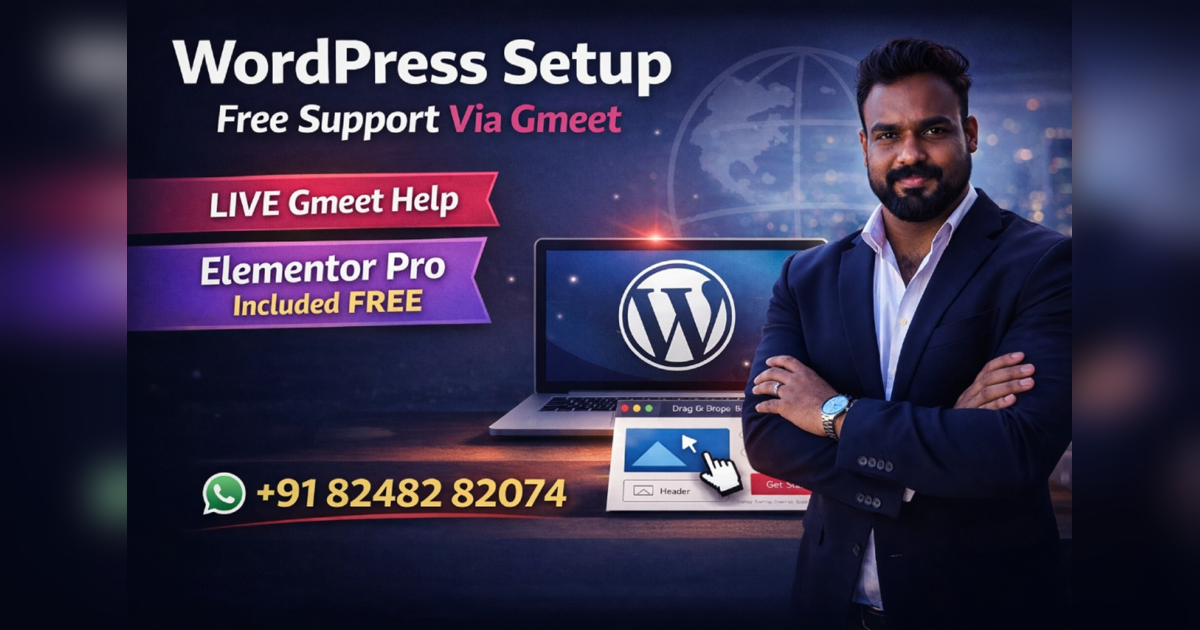
Stuck on a configuration step or unsure which hosting plan or theme to choose? As part of our community commitment, CV World offers free 30-minute 1-on-1 Google Meet onboarding sessions for beginners:
- Live Screen Sharing: Walk through your WordPress dashboard side-by-side with a senior developer.
- Hosting & Domain Troubleshooting: We help you point DNS records, configure SSL certificates, and set up professional domain email addresses (e.g.,
hello@yourbrand.com). - Theme & Page Builder Advice: Guidance on choosing between Elementor Pro, Gutenberg blocks, or custom themes.
- Zero Sales Pressure: Genuine technical mentorship to get your online journey started right.
Ready to book your free Google Meet session or explore our custom development solutions? Contact our team at CV World today.
WordPress Security Hardening Checklist for Beginners
- Disable XML-RPC: Add
<Files xmlrpc.php>Order Deny,Allow Deny from all</Files>to your.htaccessfile to block brute-force pingback attacks. - Enforce Two-Factor Authentication (2FA): Require all admin and editor accounts to use Google Authenticator or SMS 2FA.
- Change Default Database Prefix: Use a unique prefix like
cw_7x_instead of the standardwp_during initial database creation. - Automate Off-Site Backups: Configure daily automated backups to Google Drive or AWS S3 using UpdraftPlus.
WordPress Technical Onboarding: What to Prepare Before Your Gmeet Call
To make the most of your free 30-minute 1-on-1 Google Meet technical setup session with CV World, prepare the following items:
- Domain Registrar Login: Access credentials for GoDaddy, Namecheap, or Hostinger to point DNS records.
- Brand Logo & Color Palette: High-resolution PNG/SVG logo and primary brand HEX codes for site customization.
- Content Outline: A rough list of pages you need (e.g., Home, About, Services, Contact, Blog).
- List of Technical Questions: Any specific challenges regarding plugins, payment gateways, or layout design.
Frequently Asked Questions
Yes. We offer free 30-minute video onboarding consultations to help beginners start their WordPress journey on the right technical foundation without expensive agency retainers.
No. Modern visual builders like Elementor Pro and Gutenberg block editors allow anyone to build stunning, responsive websites with visual drag-and-drop tools.
WordPress.org is the free, open-source software that you install on your own web host, granting 100% freedom and data ownership. WordPress.com is a hosted commercial service with strict plugin restrictions on free tiers.
You can get started for approximately $35 to $65 for your first year, covering a custom domain name (~$12/year) and quality web hosting (~$3 to $4/month).
No. When implemented using modern clean-code standards, responsive Flexbox containers, and server-side caching, your website maintains rapid sub-second loading speeds and easily passes Google Core Web Vitals assessments.
Need Expert Development, Speed Optimization or Custom Migration?
Talk directly with CV World lead engineers. Get a transparent, fixed-price quote with guaranteed 90+ Core Web Vitals and zero obligation.