Creating Gradient Text in Elementor is a modern design trend that can make your website stand out. While Elementor doesn’t have a native gradient text feature, it’s easy to achieve stunning gradient text effects in both Elementor and Elementor Pro with a few simple tricks. In this guide, we’ll show you how to create gradient text in Elementor using both free and pro versions.
What is Gradient Text?

Gradient text is when you apply a smooth transition of colors to the text, creating a vibrant and eye-catching effect. Instead of using a single solid color, a gradient blends two or more colors together. This can help make your text more appealing and visually exciting.
What You’ll Need
- A WordPress site with Elementor (free or Pro version)
- A basic understanding of how to use Elementor editor
- Gradient color values (can be created with free tools like CSS Gradient)
Method: Using Custom CSS (Works with Both Free & Pro)
Step 1: Add a Heading Widget
- Open your page or template in the Elementor Editor
- Drag and drop the Heading widget onto your canvas
- Enter your text (e.g., “Welcome to My Blog”)
Step 2: Assign a Custom Class
- Click on the heading to open its settings
- Go to the Advanced tab
- In the CSS Classes field, enter a custom class name (e.g.,
gradient-text)
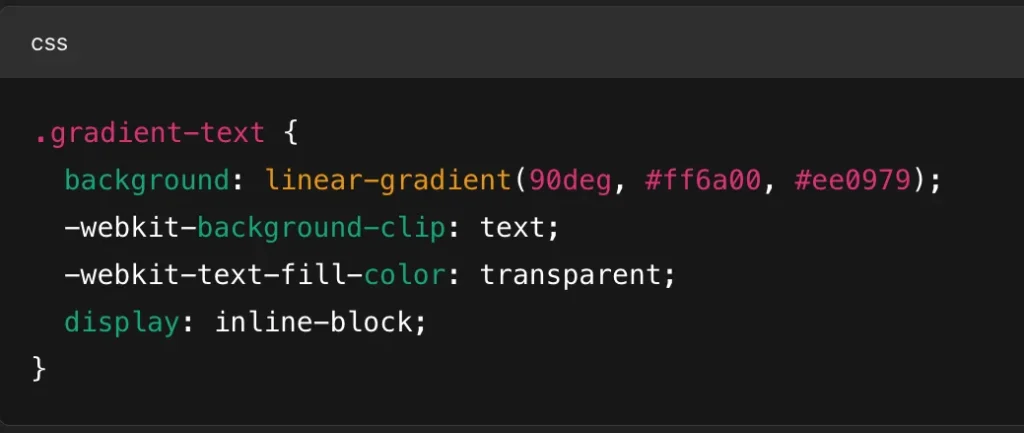
Step 3: Add Custom CSS
For Elementor Pro:
- Still under the Advanced tab, scroll down to Custom CSS
- Paste the following CSS code:
For Free Version of Elementor:
Since Custom CSS is a Pro feature, you’ll need to add the code in your WordPress Customizer or child theme CSS file:
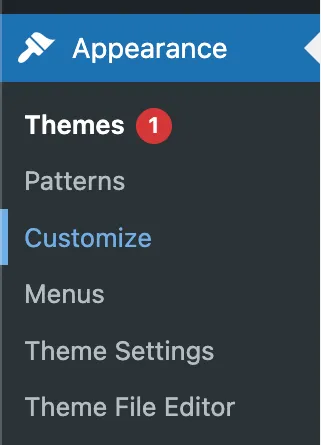
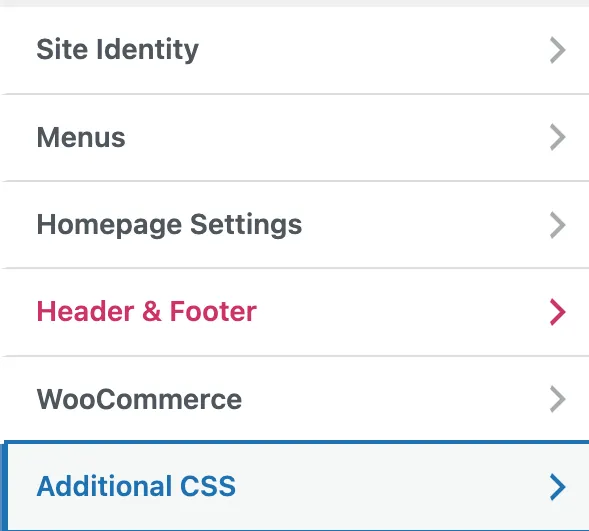
- Go to Appearance → Customize → Additional CSS
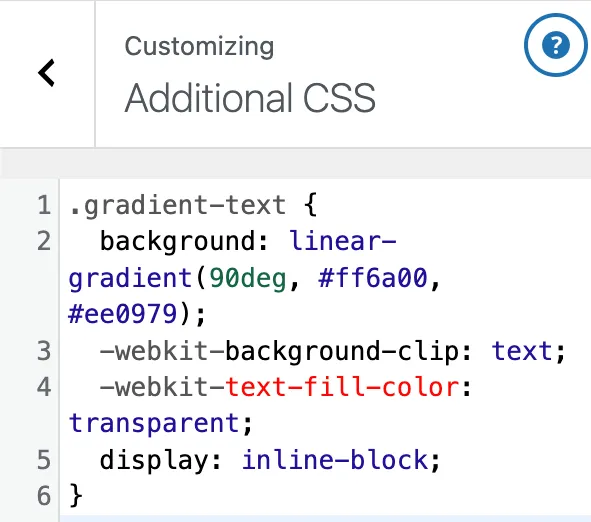
- Paste the same CSS:
- Click Publish
Tips for Best Results
- Use bold or large fonts to emphasize the gradient effect
- Choose high-contrast colors for a dramatic look
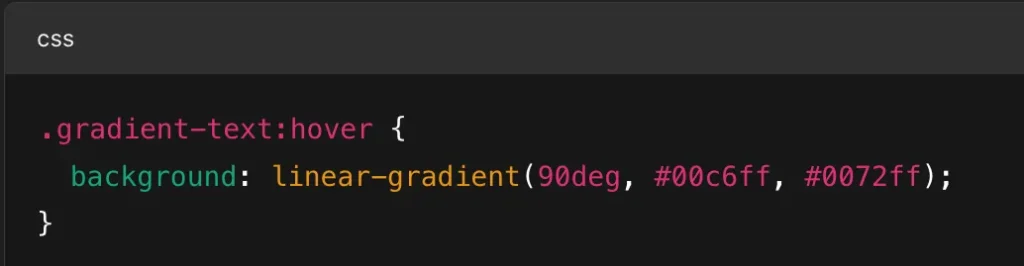
- Add hover effects by using
:hoverin CSS for animated gradients
Special Feature: Simple, Plugin-Free Gradient Text Styling
One of the standout features of this tutorial is that it shows you how to create beautiful, modern gradient text using just a few lines of custom CSS — with no additional plugins or heavy page builders required. Whether you’re using Elementor Free or Elementor Pro, this method gives you:
- Full design control over your headings, titles, or any text element
- A lightweight solution that won’t slow down your site
- Compatibility with all major browsers and mobile devices
- The flexibility to customize colors, angles, and hover effects
This approach is perfect for designers who want sleek visuals without sacrificing performance. It’s a clean, efficient, and future-proof way to add a creative edge to your Elementor projects.
Bonus: Gradient Text for Buttons or Paragraphs
You can apply the same CSS technique to any text element:
- Buttons (text only)
- Paragraphs
- Nav menus (with some tweaks)
Just apply the gradient-text class to the element and ensure it allows background-clip (some widgets may need extra styling).
Final Thoughts
Gradient text adds a vibrant, polished feel to your website. While it’s not built into Elementor by default, it’s easy to implement with a bit of custom CSS. Whether you’re using Elementor Free or Elementor Pro, this effect can level up your design instantly.
Ready to Build Professional Websites Faster?
Supercharge your WordPress design workflow with 100+ premium widgets, theme builder capabilities, and dynamic WooCommerce templates.
Conclusion
Creating gradient text in Elementor and Elementor Pro can dramatically enhance your website’s visual appeal. If you’re using the free version, you can apply gradient text effects using custom CSS, while Elementor Pro makes it even easier with its built-in gradient settings for text. Whether you’re a beginner or an advanced user, these methods can add a touch of style and sophistication to your site with ease.
Experiment with different gradients and typography options to find the perfect look for your design.