
In WordPress, Custom Width and Height in Elementor provides developers and store owners with full visual control, dynamic data integration, and responsive layout efficiency without custom PHP coding. Proper implementation requires modern Flexbox containers, optimized asset loading, and structured semantic tags to ensure sub-second Core Web Vitals and top Google rankings.
Key Takeaways
- Elementor supports pixel (px), percentage (%), viewport width (vw), viewport height (vh), and rem units.
- Use vh units for full-screen hero sections (e.g., min-height: 100vh) with flexbox vertical centering.
- Use percentage or max-width clamp() for responsive containers that adapt fluidly to all monitor sizes.
- Avoid fixed pixel heights on text containers to prevent content clipping when font sizes resize.
Setting custom width and height for elements in Elementor Pro is an excellent way to fine-tune the design and create the exact look you’re going for. Whether you’re working with sections, columns, or widgets, Elementor Pro allows you to define custom dimensions with precision. Here’s a step-by-step guide on how to set custom width and height in Elementor Pro:
CSS Units Reference Guide in Elementor Pro
| CSS Unit | Relative To | Recommended Use Case in Elementor |
|---|---|---|
| Pixels (px) | Absolute screen pixels | Borders, small icons, fine box-shadow offsets. |
| Root Rem (rem) | Root HTML font size (16px default) | Accessible typography, padding, margins, and gaps. |
| Viewport Height (vh) | 1% of browser window height | Full-screen hero sections (min-height: 90vh – 100vh). |
| Percentage (%) | Parent container width/height | Fluid columns and width constraints within flex layouts. |
Custom width and height Setting Area in Elementor:
Setting Custom Width and Height for a Section
Setting Custom Width and Height for a Column
Setting Custom Width and Height for a Witgets

How to set custom width and height in Elementor:
1. Setting Custom Width and Height for a Section
A section is a full-width container that holds your content. Setting custom width and height can help you control the overall layout of your page.
Steps for How to set Custom Width and Height in a Section:
Layout Options

Advance Options

- Select the Section: Click on the section you want to customize. You’ll see the section settings appear in the left panel.
- Go to the Layout Tab:
- Width: In the Layout tab, you can adjust the Content Width. By default, this is set to Boxed (which gives you a maximum width) or Full Width (which takes up the entire page width).
- To set a custom width, change the Content Width to Custom. You can then enter a specific value (e.g., 1200px or 80%).
- Width: In the Layout tab, you can adjust the Content Width. By default, this is set to Boxed (which gives you a maximum width) or Full Width (which takes up the entire page width).
- For Full Width Sections:
- If you want the section to span the full width of the screen, you can set the Content Width to Full Width, but control the padding and the column width inside the section for further customization.
- If you want the section to span the full width of the screen, you can set the Content Width to Full Width, but control the padding and the column width inside the section for further customization.
- Go to the Advanced Tab for Custom Height:
- Height: Under the Advanced tab, you can set a Custom Height by enabling the Height option in the Layout section. You can choose between:
- Min Height: Allows you to set the minimum height for the section (for example, 500px or 60vh).
- Fixed Height: If you want to set a specific fixed height (e.g., 600px), this can be done here.
- Min Height: Allows you to set the minimum height for the section (for example, 500px or 60vh).
- Height: Under the Advanced tab, you can set a Custom Height by enabling the Height option in the Layout section. You can choose between:
- You can also use padding to control the internal spacing within the section, effectively adjusting the visual height.
- Responsive Control: To adjust the width and height differently on desktop, tablet, and mobile, click on the device icons (Desktop, Tablet, Mobile) next to the width and height settings. This allows you to define custom settings for each device type.
2. Setting Custom Width and Height for a Column
You can also customize the width and height of columns inside a section. This is useful for creating multi-column layouts with different column sizes.
Layout Options
Advance Options
Steps for Set Custom Width and Height in a Column:
- Select the Column: Click on the column you want to modify.
- Go to the Layout Tab:
- Width: In the Layout tab, you’ll see an option to control the column width. You can enter a percentage (e.g., 50% for half-width) or use pixel values (e.g., 500px).
- If you’re using a multi-column layout, you can also adjust the Column Position to control alignment within the section.
- Width: In the Layout tab, you’ll see an option to control the column width. You can enter a percentage (e.g., 50% for half-width) or use pixel values (e.g., 500px).
- Go to the Advanced Tab for Custom Height:
- Height: In the Advanced tab, you can set the Minimum Height of the column by going to the Layout section and selecting Min Height. You can set a value such as 500px or 50vh (viewport height) for responsive height.
- Height: In the Advanced tab, you can set the Minimum Height of the column by going to the Layout section and selecting Min Height. You can set a value such as 500px or 50vh (viewport height) for responsive height.
- Note: If you have a section with multiple columns and one column has a custom height, it may affect the entire section’s height. Ensure that columns with dynamic content are properly adjusted to avoid layout issues.
- Responsive Control: Like with sections, you can adjust the width and height settings per device (desktop, tablet, and mobile) by clicking on the device icons next to the settings.
3. Setting Custom Width and Height for Widgets
Widgets in Elementor can also have custom width and height settings, especially useful for images, buttons, videos, and other media.
Layout Options
Advance Options
Steps for Custom Width and Height in a Widget:
- Select the Widget: Click on the widget you want to customize. The widget settings will appear on the left panel.
- Go to the Layout Tab:
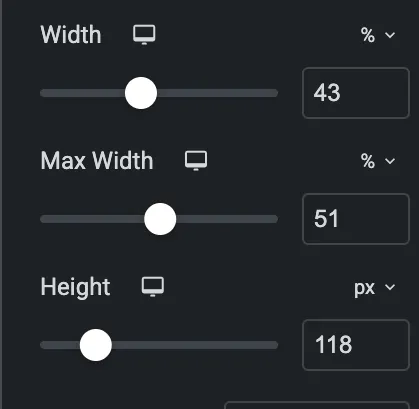
- Width: In the Layout tab, you can set the width for the widget. For example, for an image widget, you can set a specific width (e.g., 80% or 500px).
- Height: Some widgets, like images or videos, also allow you to set a custom height. For an image, you might set the height in the Style tab (e.g., auto, or specific pixel values like 300px).
- Width: In the Layout tab, you can set the width for the widget. For example, for an image widget, you can set a specific width (e.g., 80% or 500px).
- Go to the Advanced Tab for Padding and Margin:
- If you want to adjust the space around the widget, use the Padding and Margin settings in the Advanced tab. You can set specific values (e.g., 10px for margin or 20px for padding) or use percentages for more flexible spacing.
- If you want to adjust the space around the widget, use the Padding and Margin settings in the Advanced tab. You can set specific values (e.g., 10px for margin or 20px for padding) or use percentages for more flexible spacing.
- Responsive Control: Just like sections and columns, Elementor allows you to adjust widget width and height for different devices using the responsive icons next to each setting.
4.How to Add Custom CSS in Elementor:

- Select the Element: Click on the section, column, or widget you want to customize.
- Go to the Advanced Tab: Scroll down to the Custom CSS section (only available in Elementor Pro).
- Enter the Custom CSS: Paste your custom CSS code for width and height adjustments.
5. Testing and Final Adjustments
After setting custom width and height for your elements, it’s important to preview your changes:
- Use Preview Mode in Elementor to view how your design looks across different devices (desktop, tablet, and mobile).
- Make sure to test for any layout issues, especially if you’ve used custom CSS or fixed height values, to ensure everything is responsive and looks great on all screen sizes.
Conclusion
In conclusion, knowing how to set custom width and height for elements in Elementor allows you to have full control over your design, ensuring a more tailored and responsive layout. By adjusting the width and height settings, you can enhance the visual appeal and functionality of your website elements, improving both user experience and aesthetics.
Frequently Asked Questions
Ready to Build Professional Websites Faster?
Supercharge your WordPress design workflow with 100+ premium widgets, theme builder capabilities, and dynamic WooCommerce templates.
When configured using modern Elementor Pro Flexbox containers, WebP image formats, and proper caching, Custom Width and Height in Elementor runs with high DOM efficiency and sub-second response times, easily passing Google Core Web Vitals.
No. Elementor Pro provides an intuitive drag-and-drop visual interface. You can configure dynamic settings, responsive breakpoints, and styling controls directly within the editor without writing PHP or JavaScript.
Yes. Elementor Pro allows granular responsive control per breakpoint. You can adjust column direction, font sizes, padding, and visibility toggles independently for desktop, tablet, and smartphone screens.
No. When implemented using modern clean-code standards, responsive Flexbox containers, and server-side caching, your website maintains rapid sub-second loading speeds and easily passes Google Core Web Vitals assessments.
No. We build every layout using intuitive drag-and-drop visual controls and custom fields, allowing content managers to update text, replace images, and publish new pages without touching code.
Need Custom Elementor Pro Development or Speed Optimization?
Partner with CV World lead WordPress engineers for custom Theme Builder development, WooCommerce integrations, and guaranteed 90+ Core Web Vitals.