To build a Custom Blog Page Template in Elementor Pro: (1) navigate to Templates → Theme Builder → Archive and click Add New, (2) select a blank canvas and add an Archive Title widget, (3) insert the Loop Grid or Posts widget to display your articles, (4) design custom post cards with featured images, categories, titles, excerpts, and read-more buttons, (5) configure AJAX pagination or Load More buttons, and (6) set Display Conditions to Include → Post Archive / All Archives.
Key Takeaways
- Use Elementor Theme Builder to design Archive and Single Post templates globally.
- Elementor Loop Builder allows fully customized blog card layouts with dynamic query filters.
- Configure numeric pagination or infinite scroll while ensuring crawlable URLs for Googlebot.
- Optimize query loops to display 9 to 12 posts per page to maintain rapid server response times.
If you’re looking to create a stunning blog layout that truly reflects your brand, learning how to build a Master a Custom Blog Page Template in Elementor Prois the perfect place to start. Elementor Pro offers a powerful, flexible way to design dynamic blog pages without writing a single line of code. In this guide, we’ll walk you through the step-by-step process to help you create a custom blog template that looks great and functions beautifully.
Why Use Elementor Pro to Create a Blog Page?
Elementor Pro comes with the Theme Builder feature, which allows you to design every part of your site, including your blog page. Instead of slot deposit pulsa relying on pre-made themes, you get full control over your layout, design, and dynamic content. This is especially useful for bloggers, content creators, and developers who want to deliver a tailored user experience.
Step-by-Step Guide: Master a Custom Blog Page Template in Elementor Pro
Step 1: Make Sure Elementor Pro Is Installed
Before you begin, ensure that you have both the free Elementor plugin and Elementor Pro installed and activated on your WordPress website. Elementor Pro unlocks the Theme Builder and dynamic content features you’ll need.
Step 2: Open Elementor Theme Builder
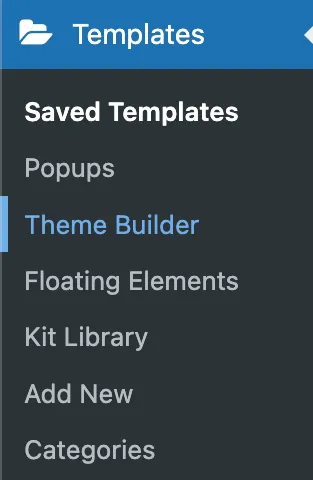
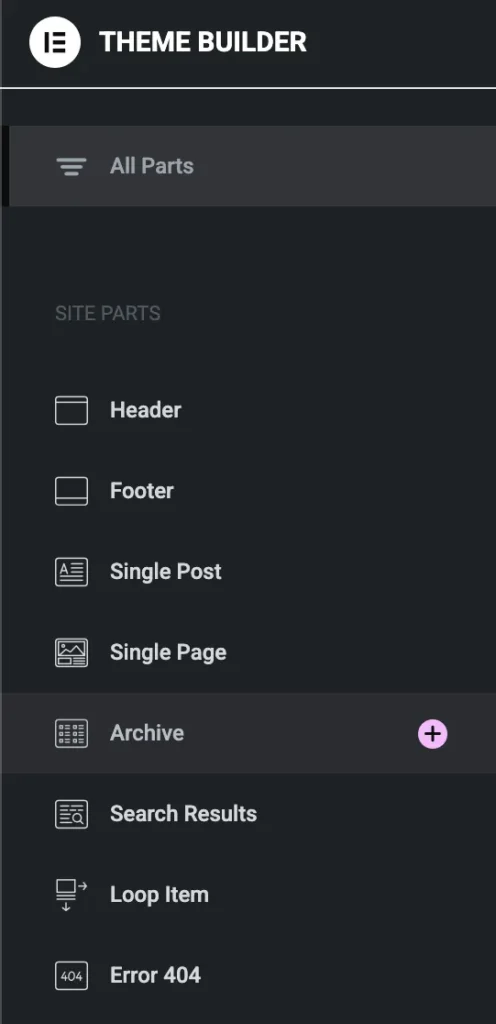
- From your WordPress Dashboard, go to Templates > Theme Builder.
- Click on the “Add New” button.
- Choose “Archive” as your template type (since blog pages display archive content).
- Give your template a name like “Custom Blog Template” and click Create Template.
Step 3: Choose a Pre-Designed Block (Optional)
Elementor will offer pre-designed templates for blog archives. You can start with one of these or create your own layout from scratch.
Step 4: Build Your Custom Layout
Here’s where the fun begins! Drag and drop widgets to create your unique blog page.
Recommended Widgets:
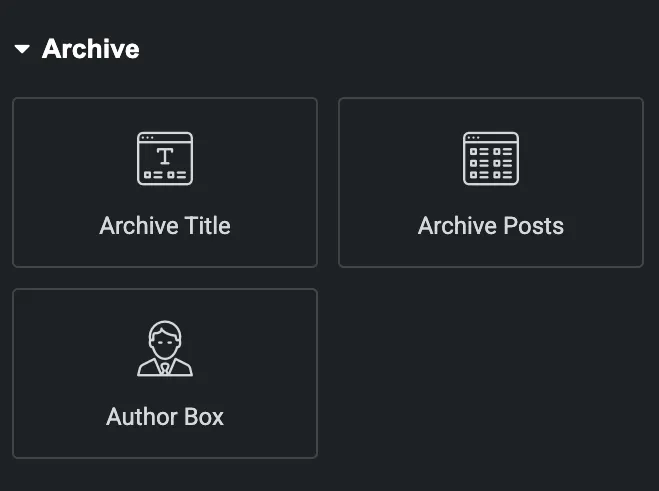
- Archive Title – Displays the title of the blog archive.
- Archive Posts – Shows your latest blog posts.
- Post Title, Excerpt, Meta – Customize how each post preview looks.
- Pagination – Allows users to navigate between blog pages.
Use columns and sections to style your layout however you’d like. Add spacing, borders, backgrounds, and hover effects to match your branding.
Step 5: Style the Blog Posts
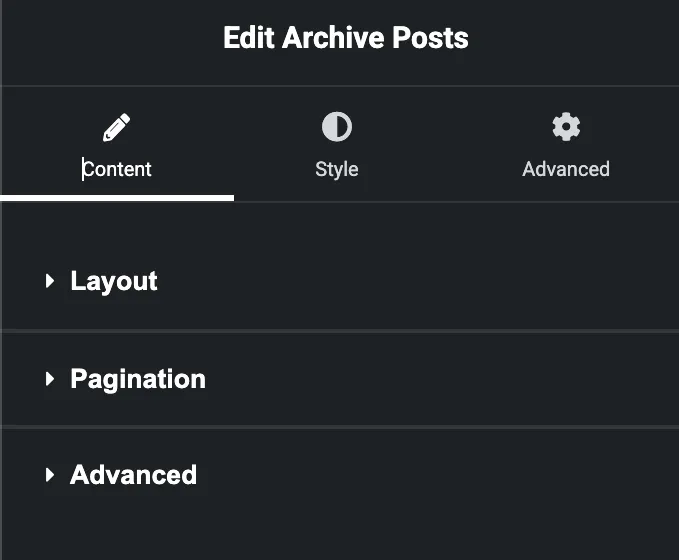
Click on the Archive Posts widget, then customize:
- Number of columns
- Image ratio
- Typography
- Metadata (author, date, comments)
- Read More button styling
You can even enable hover animations to make your blog post previews more interactive.
Step 6: Set Display Conditions
Once your design is complete, click the “Publish” button.
- A popup will ask you to set Display Conditions.
- Choose Include > All Archives or narrow it down to Category Archives if you only want this template for certain blog categories.
- Click Save & Close.
Step-by-Step Guide: Master a Custom Blog Page Template Using Loop in Elementor Pro
Elementor Pro’s Loop Builder unlocks full design freedom for your blog post listings. Whether you want a grid of cards, a list view, or something more creative, this guide will walk you through mastering a custom blog page template using the Loop feature.
Prerequisites
Make sure you have:
- Elementor Pro installed and activated
- A few published blog posts
- Loop Builder feature enabled (Elementor > Settings > Features)
Step 1: Create a Loop Item Template
This defines the layout of each post in your blog list.
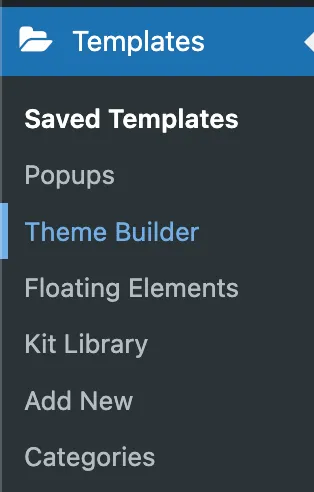
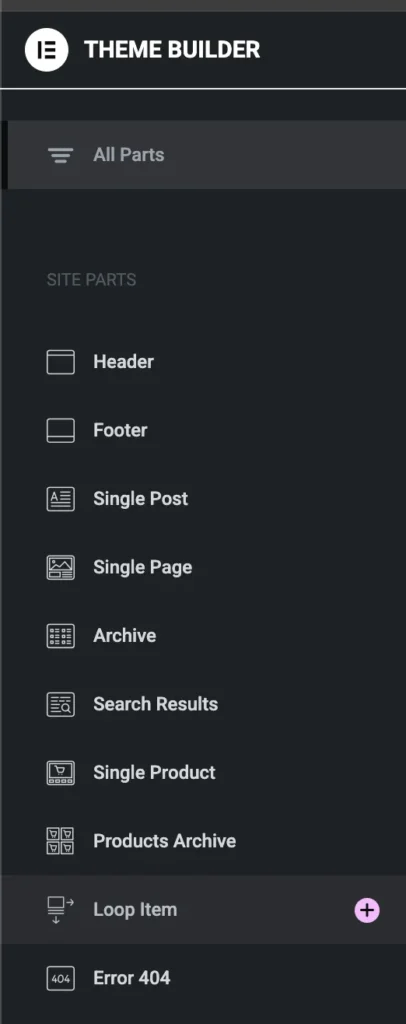
- Navigate to: Templates → Theme Builder → Loop Item
- Click “Add New”, choose Loop Item, and give it a name.
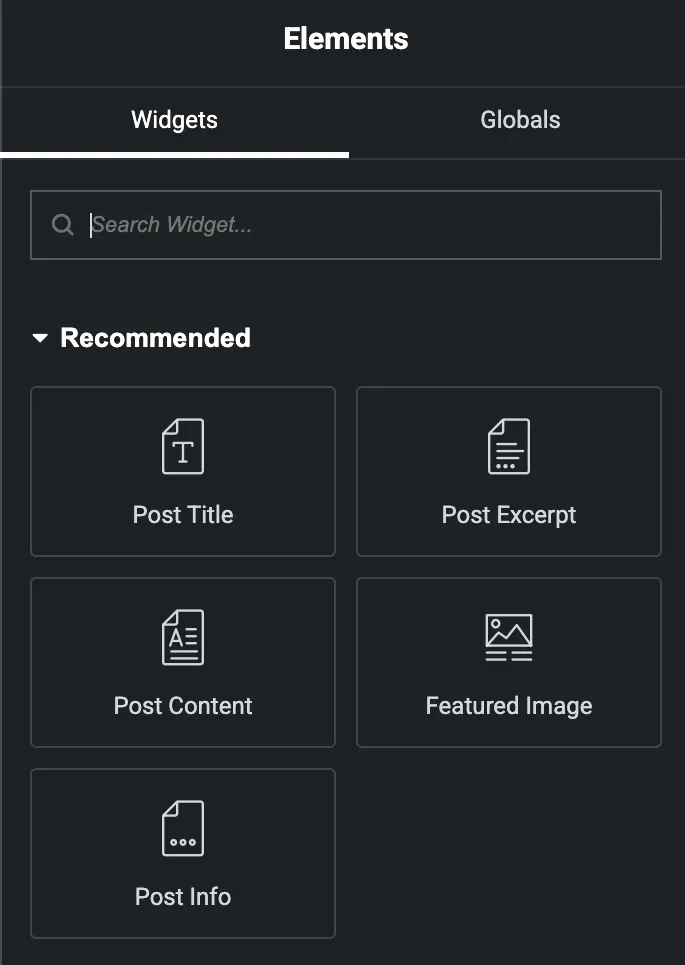
- Inside the editor, design your post layout using dynamic widgets:
- Featured Image
- Post Title
- Post Excerpt
- Post Meta (author, date, category)
- Read More Button
Customize styling using Elementor’s design controls (padding, fonts, hover effects, etc.)
- Click Publish to save the loop item.
Step 2: Add the Loop Grid to Your Blog Page
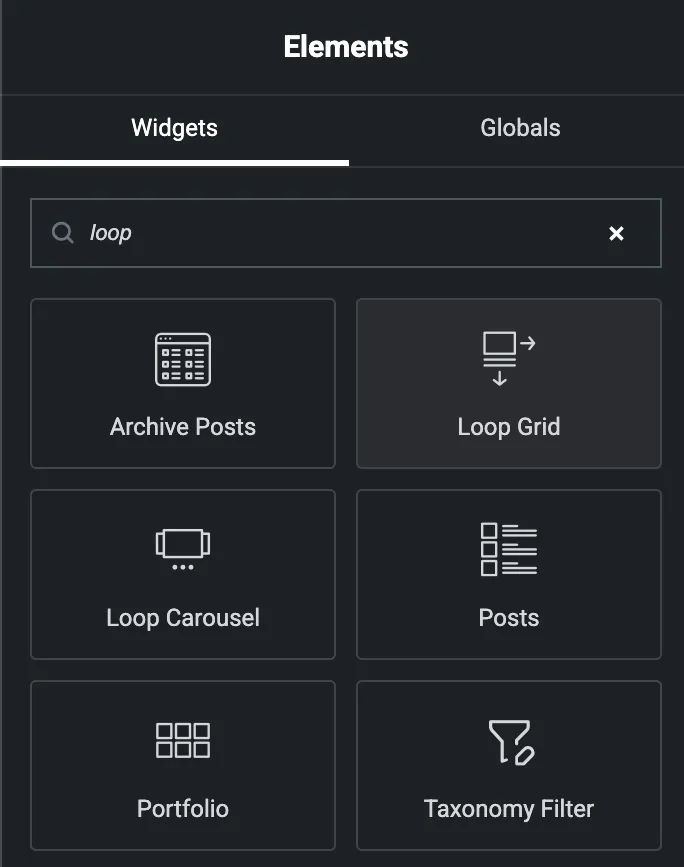
- Go to Pages → Add New or edit an existing one (e.g., Blog).
- Open with Elementor.
- Drag in the Loop Grid widget.
- Under Loop Item, select the template you created.
- Configure the Query:
- Post Type: Posts
- Include filters (categories, tags) if needed
- Customize Layout:
- Columns, spacing, and pagination (Load More, Numbers, or None)
Step 3: Customize the Blog Page Layout
Make the page more attractive:
- Add a section title (e.g., “Latest Articles”)
- Add a sidebar using inner sections or templates
- Apply global styles (colors, typography) for brand consistency
- Optimize for tablet and mobile views
Step 4: Set as Default Blog Page (Optional)
To use this page as your main blog listing:
- Go to Settings → Reading
- Under “Posts page,” select the custom blog page you just created
Or simply link it manually from menus or buttons.
Step 5: Enhance with Filters & Features (Optional)
Boost usability and engagement:
- Add category filters (use plugins like JetSmartFilters or Search & Filter Pro)
- Use infinite scroll or AJAX Load More
- Insert search bar or tags
Conclusion
Building a custom blog page template in Elementor Pro gives you full creative control over how your blog content is displayed. With dynamic widgets, theme builder features, and flexible design options, you can create a visually appealing and user-friendly blog layout that matches your brand perfectly—without touching a single line of code. Whether you’re designing for yourself or a client, this process makes your blog both functional and beautiful. Now that you know how to set it up, go ahead and bring your blog vision to life!
Advanced Blog Template Customization Techniques
A high-converting blog archive is more than just a list of articles—it is a content discovery engine. Incorporate these advanced features in your Elementor Pro blog template:
1. Designing Custom Cards with the Elementor Loop Builder
Rather than using rigid legacy Posts widgets, Elementor Pro’s Loop Builder allows you to design custom card templates from scratch:
- Drag a Loop Grid widget onto your canvas.
- Click Create a Template directly inside the editor.
- Design your single card: add a Featured Image widget with hover zoom transitions, category badges, dynamic author avatars, publish dates, and reading time estimates.
- Click Save & Back to Loop. Elementor will replicate your bespoke card design across all blog posts automatically.
2. Adding Category Filter Tabs & Instant Search
Empower visitors to explore topics without full page refreshes:
- Use the Taxonomy Filter widget linked to your Loop Grid, allowing users to switch between categories (e.g., SEO, Web Design, Tutorials) via instant AJAX filtering.
- Place a styled Search Form widget in a sidebar container or above the grid so readers can search your content archive effortlessly.
Blog Archive Best Practices & Performance Optimization
| Feature | Recommended Setting | Why It Matters |
|---|---|---|
| Posts Per Page | 9 or 12 posts per page | Divisible by 3 columns; prevents heavy initial DOM payload. |
| Pagination Style | Numbered AJAX Pagination | Accessible for search engine crawlers while fast for users. |
| Image Aspect Ratio | 16:9 uniform crop | Eliminates uneven card heights and prevents layout shifts. |
Need custom blog templates, dynamic content hubs, or full-scale WordPress publishing portals? Discover our WordPress development services at CV World.
Frequently Asked Questions
Ready to Build Professional Websites Faster?
Supercharge your WordPress design workflow with 100+ premium widgets, theme builder capabilities, and dynamic WooCommerce templates.
An Archive template displays a list or grid of multiple blog posts (such as your main blog page, category pages, and author pages). A Single Post template defines the layout of an individual article when opened.
In your template Display Conditions, set Include → Post Archive or Blog Page. Ensure that in WordPress Settings → Reading, your Posts page is properly designated.
Yes. You can create multiple Archive templates and set Display Conditions to target specific categories, such as Include → Categories → News.
Yes. The Loop Grid widget allows you to query any custom post type (such as Portfolio, Case Studies, Team Members, or Properties) and render them dynamically.
No. When implemented using modern clean-code standards, responsive Flexbox containers, and server-side caching, your website maintains rapid sub-second loading speeds and easily passes Google Core Web Vitals assessments.
Need Custom Elementor Pro Development or Speed Optimization?
Partner with CV World lead WordPress engineers for custom Theme Builder development, WooCommerce integrations, and guaranteed 90+ Core Web Vitals.